Every phone battery wears out eventually. How fast that happens, and whether your phone gets through a whole day in the meantime, depends a lot on a handful of settings and habits that most people never touch.
This guide covers iPhones on iOS 26 and Android phones on Android 16, with paths for Google Pixel and Samsung Galaxy models. Menu names can shift slightly between models and regions, so where they differ we give each version.
Key takeaway: getting through the day is mostly about the screen, radios, and background apps. Keeping your battery healthy for years is mostly about heat and how long the phone sits at 100 percent.
Step 1: Check your battery health first
Start by finding out what you are working with. If your battery has already lost a lot of capacity, no setting will fully make up for it, and a replacement may be the real fix.
On iPhone
- Open Settings and tap Battery.
- On iPhone 15 and later, tap Battery Health. On iPhone 14 and earlier, tap Battery Health & Charging.
- Look at Maximum Capacity, which compares today's capacity with what the battery held when new.
- On iPhone 15 and later, you will also see the cycle count, manufacture date, and date of first use.
If you see a Service message next to Battery Health, Apple recommends considering a battery replacement. If your battery has been swapped before, Settings > General > About > Parts and Service History shows whether a genuine part was used.
On Google Pixel
- Open Settings and tap Battery.
- Tap Battery health.
- On Pixel 8a and newer, you get a Battery capacity estimate plus a status: Normal, or Reduced once capacity falls below 80 percent.
Older Pixels still get the Battery health page, with tips and charging controls, but not the capacity percentage. Newer Pixels also list cycle count under Settings > About phone > Battery information.
On Samsung Galaxy
Open the Samsung Members app and go to Support > Phone diagnostics > Battery status, which rates the battery rather than giving an exact figure. Some recent Galaxy models show more detail on a Battery information page under Settings > Battery, depending on region and firmware.
Step 2: Tame the screen, the biggest drain
On most phones the display uses more power than anything else. Two things matter most: how bright the screen is and how often it refreshes.
- Leave auto-brightness on. On iPhone it lives in Settings > Accessibility > Display & Text Size > Auto-Brightness. On Pixel it is Adaptive brightness under Settings > Display & touch. On Samsung it is Adaptive brightness under Settings > Display.
- Shorten the screen timeout. Thirty seconds to a minute is plenty for most people.
- Use dark mode on OLED screens, where dark pixels use less power than bright ones.
- Consider switching off the always-on display. On Samsung it is in Settings > Lock screen and AOD.
Refresh rate
High refresh rate screens (90Hz or 120Hz) feel smoother but cost battery, especially on panels that cannot drop to very low rates.
- On Pixel, go to Settings > Display & touch > Smooth display. Turning it off locks the screen at 60Hz. The base Pixel 10 ships with it off.
- On Samsung, go to Settings > Display > Motion smoothness and choose Standard for 60Hz instead of Adaptive.
- On iPhones with ProMotion, iOS manages the rate for you. Settings > Accessibility > Motion > Limit Frame Rate caps it at 60Hz if you want to squeeze out a little more. Low Power Mode limits the rate automatically.
Step 3: Cut background activity, location, and 5G
The next biggest drains are apps working in the background, constant location checks, and a cellular radio fighting for signal.
Find the culprits
- On iPhone, open Settings > Battery. iOS 26 adds a Daily Usage chart and a View All Battery Usage list, along with Insights that flag things like heavy background activity or an update still finishing.
- On Pixel, open Settings > Battery > Battery usage.
- On Samsung, open Settings > Battery and tap View details.
Rein in background apps
- On iPhone, go to Settings > General > Background App Refresh and turn it off for apps that do not need fresh content the moment you open them.
- On Pixel, go to Settings > Apps, pick an app, tap App battery usage, then set Allow background usage. Optimized is the default and suits most apps.
- On Samsung, go to Settings > Battery > Background usage limits, where you can put unused apps to sleep.
Location
On iPhone, go to Settings > Privacy & Security > Location Services and set apps to While Using the App or Never unless they truly need Always. On a Pixel, go to Settings > Location > App location permissions and do the same, choosing Allow only while using the app. Samsung uses a similar screen under Settings > Location, labeled App permissions.
5G
On iPhone, go to Settings > Cellular > Cellular Data Options > Voice & Data (Mobile Data on some regional models) and pick 5G Auto. Apple says this switches to LTE when 5G would not make a noticeable difference, which saves battery. 5G On uses 5G whenever it can and may drain more. Android phones handle this automatically on most carriers, and Samsung's Power saving mode can turn 5G off completely.
Keep Wi-Fi and Bluetooth on. Apple says they use very little power, and Wi-Fi is usually more efficient than cellular data.
Step 4: Use the built-in power modes
Both platforms have smart modes that learn your routine plus manual modes for emergencies.
iPhone: Adaptive Power and Low Power Mode
In iOS 26 both modes live in Settings > Battery > Power Mode.
- Adaptive Power makes small changes, such as dimming the screen slightly or letting some tasks take longer, on days you are using more power than usual. It can also turn on Low Power Mode by itself when the battery reaches 20 percent. It works on iPhone 15 Pro and later, and is on by default on the iPhone 17 models and iPhone Air.
- Low Power Mode cuts back mail fetch, background refresh, some visual effects, and the ProMotion refresh rate. Turn it on from Power Mode or from Control Center.
Pixel: Adaptive Battery and Battery Saver
- Go to Settings > Battery > Battery Saver > Adaptive Battery and make sure Use Adaptive Battery is on. Google says it can take a few weeks to fully learn how you use your apps.
- In Settings > Battery > Battery Saver, you can turn on Battery Saver or the stricter Extreme Battery Saver, which pauses most apps.
- Tap Schedule and reminders to have Battery Saver turn on automatically at a set battery level.
Samsung: Power saving and Adaptive battery
- Go to Settings > Battery > Power saving and choose what it should limit, such as always-on display, CPU speed, brightness, or 5G. Then turn it on at the top of the screen.
- Adaptive battery sits behind the three-dot menu in Settings > Battery > Background usage limits. Leave it on unless an app that needs to run in the background stops working properly.
Step 5: Set a charge limit
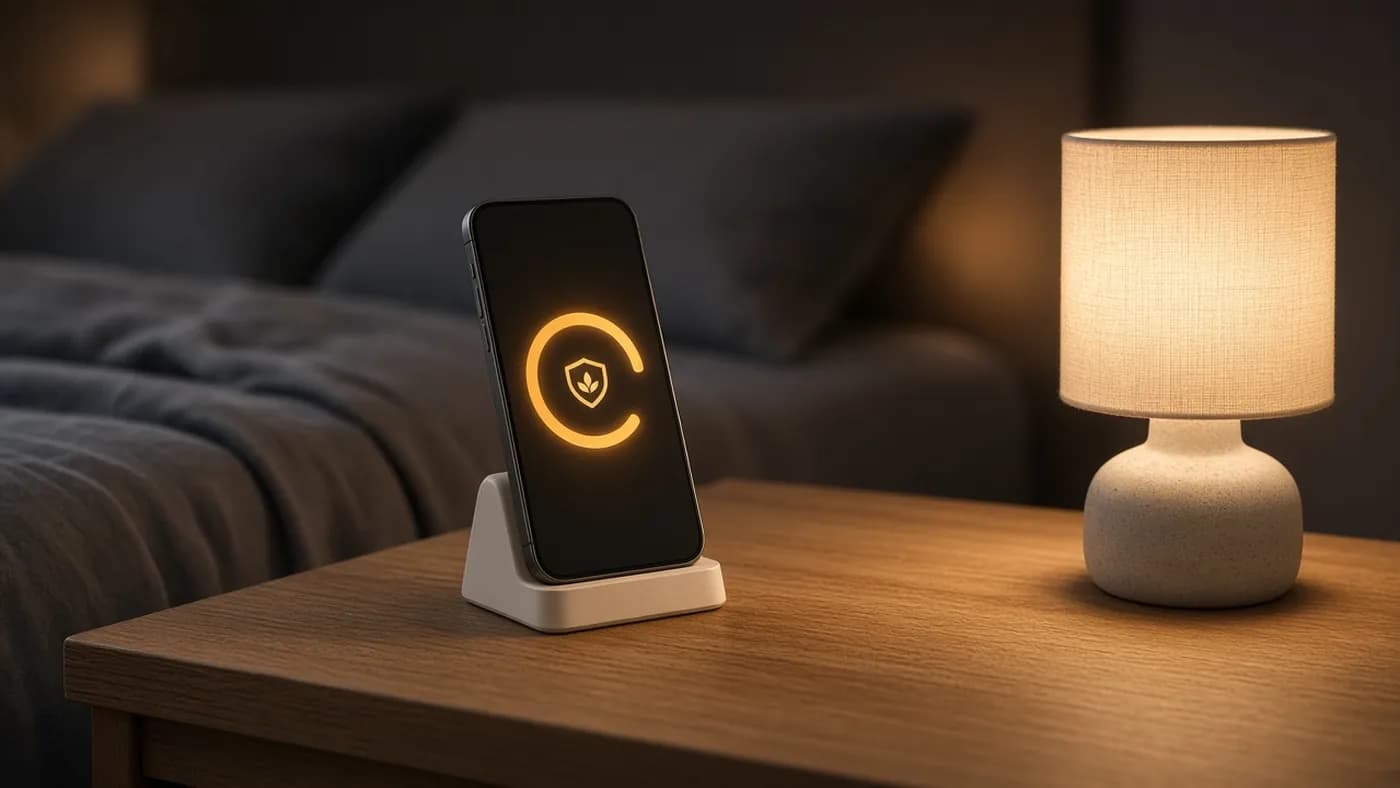
This is the most important step for long-term health. Lithium-ion batteries wear faster when they sit at full charge for long periods, especially when warm. Every major platform now lets you stop short of 100 percent or delay the last stretch until you need it.
iPhone 15 and later
- Open Settings > Battery > Charging.
- Choose a Charge Limit from 80 to 100 percent, in 5 percent steps.
- If you leave it at 100 percent, turn on Optimized Battery Charging. Your iPhone learns your routine and holds at 80 percent until shortly before you usually unplug.
On iPhone 14 and earlier, go to Settings > Battery > Battery Health & Charging and turn on Optimized Battery Charging. There is no fixed limit on those models.
Google Pixel
- Open Settings > Battery > Battery health > Charging optimization.
- Turn on Use charging optimization.
- Choose Adaptive Charging, which learns your habits over about two weeks and finishes charging just before you unplug. Or choose Limit to 80%, which is available on Pixel 6a and later.
Even with the limit on, a Pixel charges to 100 percent about every tenth cycle to keep capacity readings accurate. Battery health assistance also gradually lowers the maximum voltage from around 200 cycles onward to slow aging. It is on by default and can be turned off on most models, but not on the Pixel 9a and newer.
Samsung Galaxy (One UI 8)
- Open Settings > Battery > Battery protection.
- Basic stops charging at 100 percent and starts again at 95 percent. Select it to see a sleep-time or adaptive option, which holds the battery at about 80 percent overnight and tops up before you wake. Samsung says this takes roughly two weeks to learn your sleep pattern.
- Maximum sets a hard cap of 80, 85, 90, or 95 percent.
| What you want | iPhone (iOS 26) | Pixel (Android 16) | Samsung (One UI 8) |
|---|---|---|---|
| Check health | Battery > Battery Health | Battery > Battery health | Samsung Members > Phone diagnostics |
| Hard charge limit | Battery > Charging (80–100%) | Charging optimization > Limit to 80% | Battery protection > Maximum (80–95%) |
| Smart overnight charging | Optimized Battery Charging | Adaptive Charging | Basic with sleep-time protection |
| Learns your app use | Adaptive Power (15 Pro and later) | Adaptive Battery | Adaptive battery |
| Emergency mode | Low Power Mode | Battery Saver / Extreme Battery Saver | Power saving |
A practical rule: if you usually finish the day with 30 percent or more left, a hard 80 or 85 percent limit costs you nothing you would miss. If you often run close to empty, use the smart overnight option instead so you still start the day full.
Step 6: Keep it cool
Heat does more lasting damage to a battery than anything else. Apple says iPhones work best in ambient temperatures of 16 to 22°C (62 to 72°F) and warns that using or charging above 35°C (95°F) can permanently shorten battery life. Android makers give similar advice.
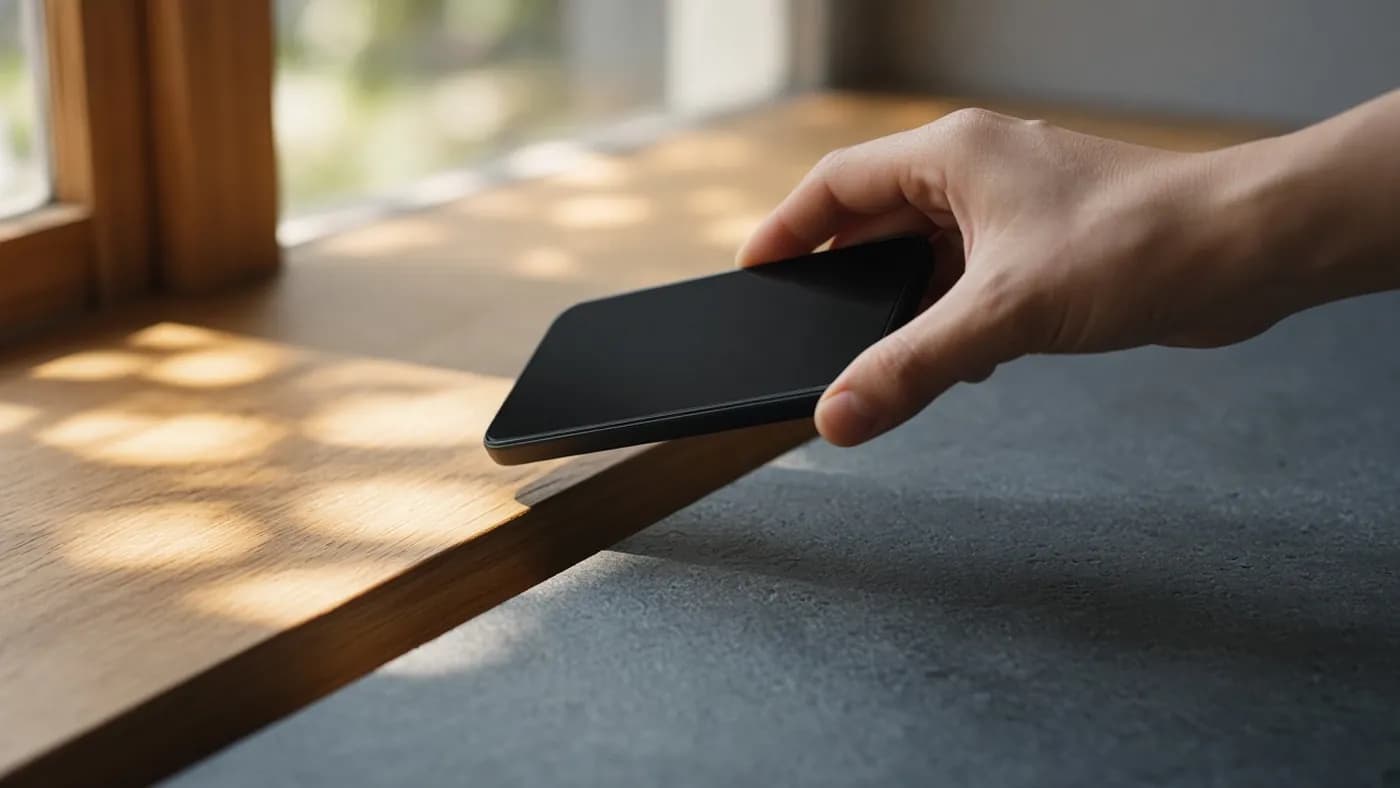
- Never leave your phone on a car dashboard or in a parked car on a warm day.
- Keep it out of direct sun, and put it down while navigating or gaming outdoors in summer.
- If your phone gets hot while charging, take off a thick case or move it off a soft surface like a bed or sofa.
- Avoid charging in extreme cold too. iPhones may show "Charging On Hold" until they return to a safe temperature.
Step 7: Charging myths vs facts
A lot of battery advice dates from older battery chemistries. Here is what holds up for modern lithium-ion phones.
- Myth: charging overnight ruins the battery. Fact: phones stop charging when full, and Apple says overnight charging is safe. Optimized charging and charge limits reduce time at 100 percent further.
- Myth: you should run the battery to zero regularly. Fact: lithium-ion batteries do not need full discharges, and deep drains add stress. A Pixel's periodic full charge only keeps the battery gauge accurate.
- Myth: closing apps saves battery. Fact: iOS and Android suspend apps you are not using, and constantly force-closing them makes them reload from scratch. Only close an app that is misbehaving.
- Myth: fast charging destroys batteries. Fact: phones slow charging as the battery fills and warms. Heat is the real enemy. Samsung lets you turn off fast charging in Settings > Battery > Charging settings if yours runs hot.
FAQ
What battery health percentage means I need a replacement?
Around 80 percent of original capacity is the usual point to start thinking about it. Pixel 8a and newer label the battery Reduced below that level, while iPhones show a Service message once the battery has degraded significantly. Unexpected shutdowns are another sign to get a quote.
Should I set my charge limit to 80 percent?
If you regularly end the day with plenty left, yes. It is the simplest way to slow battery aging. If you need every percent, leave the limit at 100 and use Optimized Battery Charging, Adaptive Charging, or Samsung's sleep-time protection so the phone still avoids sitting full overnight.
Does wireless charging hurt my battery?
Wireless charging tends to produce more heat than a cable, and heat speeds up aging. Modern phones and certified chargers manage temperature, so it is fine to use, but avoid setups that leave your phone noticeably hot.
Why is my battery worse right after a software update?
After a major update, your phone keeps reindexing, optimizing apps, and syncing in the background for a while. iOS may show an Ongoing iOS Update insight in Settings > Battery. Things normally settle within a few days.
The bottom line
To get through the day, turn on auto-brightness, rein in background apps and location access, use 5G Auto on iPhone, and let Adaptive Power or Adaptive Battery do their jobs. To keep your battery healthy for years, set a charge limit or smart overnight charging and keep your phone out of the heat. Check your battery health every few months so you know when a replacement makes more sense than another settings tweak.
Join the conversation