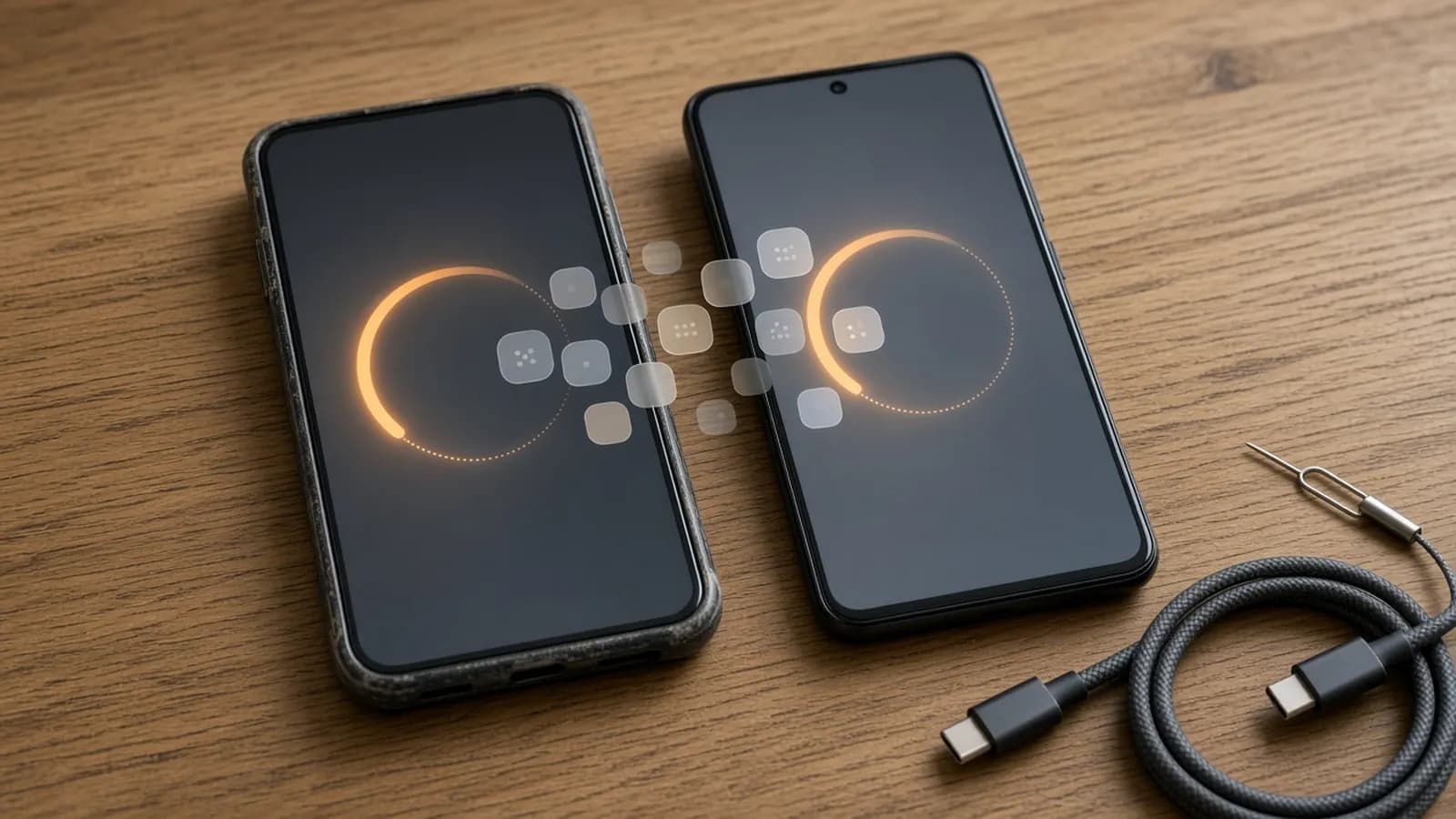
New phones are arriving fast this month. iOS 27 went out on September 14, the iPhone 18 Pro models are in preorder, Pixel phones have had Android 17 since June, and Samsung began rolling out One UI 9 to the Galaxy S26 series today, starting in South Korea. Whichever phone you are moving to, the built-in transfer tools are better than ever, and a few of them now work across platforms.
This guide covers all four routes: iPhone to iPhone, Android to Android, Android to iPhone and iPhone to Android. It then covers the things that still need manual attention, and what to do with the old phone once you are done.
Before you start: a 10-minute checklist
A little prep avoids most failed transfers. Do these on the old phone first:
- Update both phones to the latest software. Most transfer tools want the new phone on the same or a newer OS version than the old one.
- Charge both phones and keep them plugged in during the transfer.
- Make a fresh backup: iCloud Backup on iPhone (Settings > [your name] > iCloud > iCloud Backup > Back Up Now), or Google backup on Android (see below).
- Confirm your passwords: your Apple Account or Google Account, your phone's passcode, and your password manager's master password.
- Write down anything tied to your phone number, like banking apps, authenticator apps and messaging apps. These need separate steps.
Transfer methods at a glance
| Moving from and to | Main tool | Connection | What it moves well | Watch out for |
|---|---|---|---|---|
| iPhone to iPhone | Quick Start | Wireless, cable, or iCloud download | Nearly everything, including apps, settings and messages | Both phones are tied up during a direct transfer |
| iPhone to iPhone (no old phone) | iCloud Backup restore | Wi-Fi | Everything in your last backup | Only as current as your last backup |
| Android to Android | Built-in "Copy apps & data" | Cable or wireless | Apps, contacts, messages, photos, most settings | Some app data doesn't use Android backup |
| Android to Galaxy | Samsung Smart Switch | Cable or wireless | Galaxy to Galaxy moves almost everything, including the home screen layout | Settings transfer is more limited from non-Samsung phones |
| Android to iPhone | Move to iOS app, or "Transfer without App" on some Android 17 phones | Wi-Fi, phones side by side | Contacts, messages, photos, calendars, WhatsApp | iPhone must be new or factory reset |
| iPhone to Android | Setup copy (cable) or Google's Switch to Android app | Cable is most complete | iMessage history, photos, apps with cable | Turn off iMessage first |
Key takeaway: when you have the choice, use a cable. Wired transfers are usually faster and, on several platforms, move more types of data than wireless.
iPhone to iPhone
Quick Start (old phone in hand)
Quick Start is the easiest route and works with any old iPhone on iOS 11 or later.
- On the old iPhone, connect to Wi-Fi and turn on Bluetooth.
- Turn on the new iPhone and place it next to the old one. A Set Up New iPhone prompt appears on the old phone. If it doesn't, restart both.
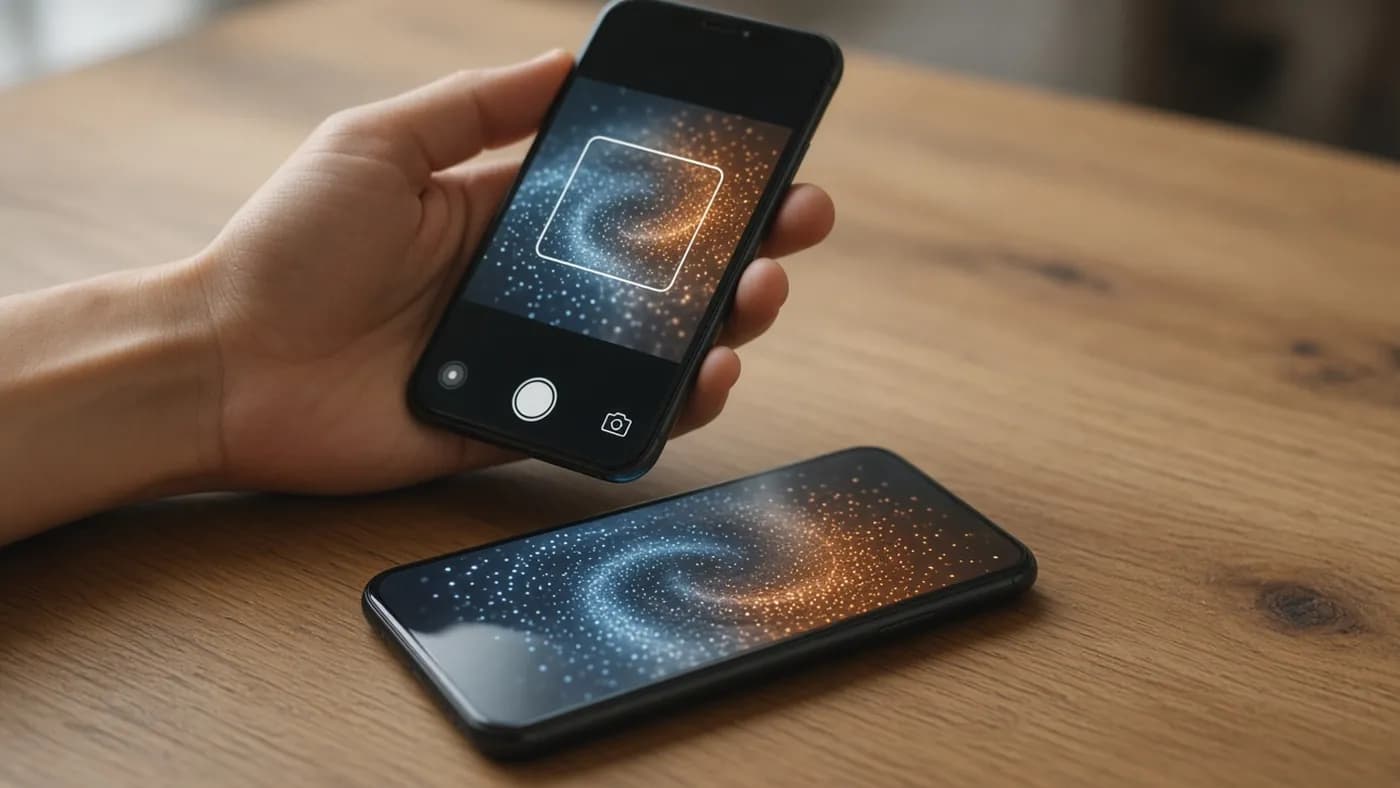
- Use the old iPhone to scan the swirling animation on the new one, then enter your old passcode on the new phone.
- Set up Face ID and activate cellular service when asked. With eSIM Quick Transfer, your number can move over without calling your carrier, if your carrier supports it.
- On the Transfer Your Data screen, choose Transfer from iPhone or Download from iCloud.
Transfer from iPhone copies everything directly, but you can't use either phone until it finishes. Download from iCloud (the old phone needs iOS 17.2 or later) makes a fresh backup and lets you use the new phone right away while apps and data download in the background. Apple also supports a wired transfer if Wi-Fi is slow.
iCloud restore (old phone lost, broken or already traded in)
- Turn on the new iPhone, join Wi-Fi, and follow the steps until you reach the Apps & Data screen.
- Tap Restore from iCloud Backup and sign in with your Apple Account.
- Pick the right backup by checking its date and size.
- Stay on Wi-Fi and power until photos, music and apps finish downloading.
Android to Android
Google's built-in transfer
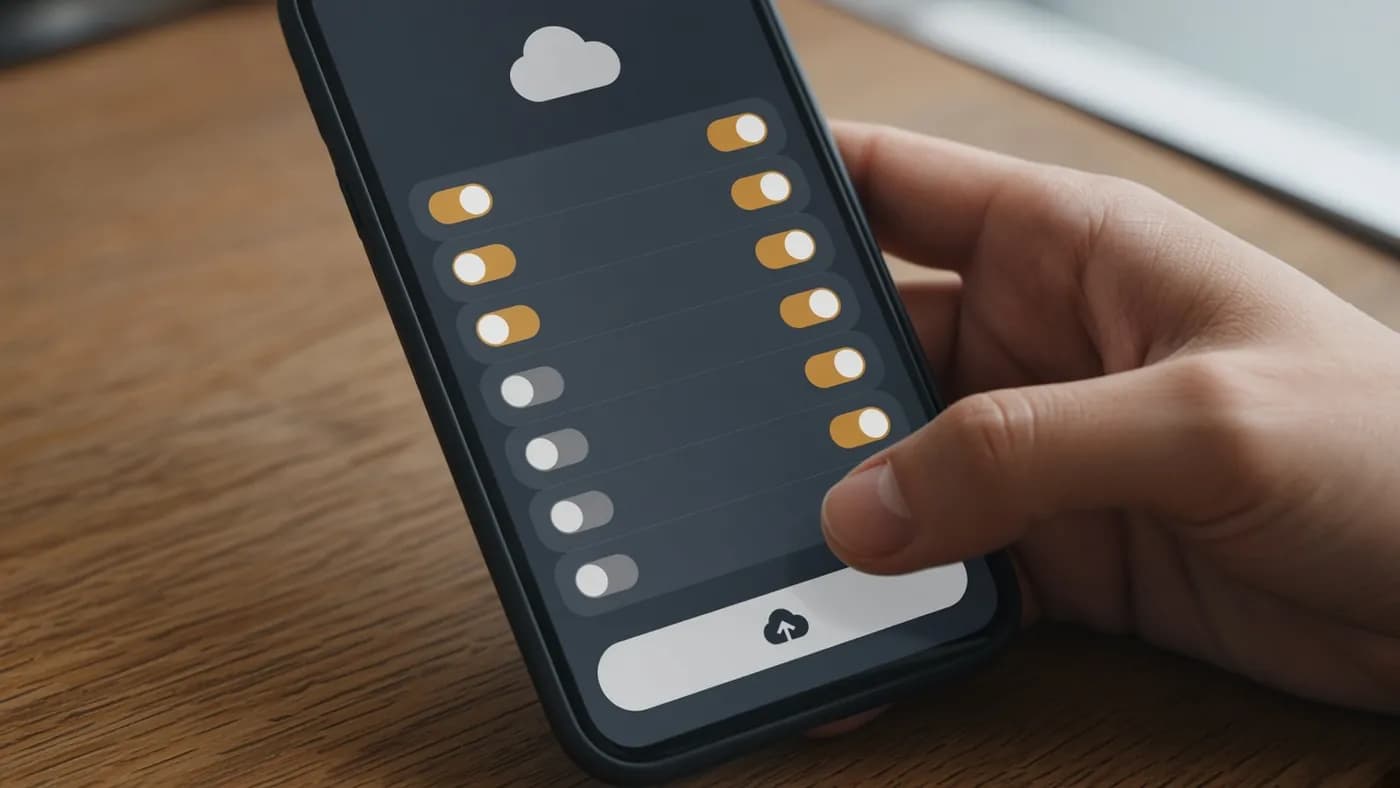
Every modern Android phone offers to copy data during setup. On the old phone, make sure backup is on first. On Pixel phones and many others, the path is Settings > Google > All services > Backup, then tap Back up now. On Samsung phones, look under Settings > Accounts and backup.
- Turn on the new phone. When asked whether to set up using another device, choose your old Android phone.
- Scan the QR code shown to pair the phones, then enter the old phone's PIN, pattern or password. This copies your Wi-Fi networks and Google Account.
- Choose Copy apps & data, connect a cable if prompted (or pick the wireless option), select what to copy, and tap Copy.
- No old phone? Tap the option for no cable or adapter, sign in to your Google Account, and restore from your cloud backup instead.
Google says this moves apps, contacts, text messages, photos, call history, wallpaper and most settings. It does not move apps from outside the Play Store, data from apps that don't use Android backup, or contacts and calendars synced to non-Google accounts. Your photos in Google Photos just sync once you sign in.
Samsung Smart Switch
Moving to a Galaxy phone? Smart Switch is preinstalled and moves more than Google's tool, especially from another Galaxy.
- Open Smart Switch on both phones.
- On the old phone, tap Send data (on some versions, Send from this phone). On the new phone, tap Receive data (or Receive on this phone), then choose the type of phone you are moving from.
- Pick Wireless and scan the QR code on the new phone, or pick Cable and connect them. Samsung says to keep the phones within about 4 inches of each other for a wireless transfer.
- Choose Everything or Custom, then start the transfer.
Galaxy-to-Galaxy transfers bring over settings and your home screen layout. From other brands, fewer settings come across.
Android to iPhone
Apple's Move to iOS app from Google Play handles this switch. It only works while the iPhone is being set up, so the iPhone must be new or factory reset.
- On the iPhone, at the Transfer Your Apps & Data screen, choose From Android.
- Open Move to iOS on the Android phone and enter the code shown on the iPhone.
- Select what to move: contacts, message history, photos and videos, calendars, mail accounts, bookmarks, call history, and WhatsApp.
- Keep both phones plugged in and next to each other until it finishes.
Apple says some compatible Android 17 phones can now use Transfer without App instead: scan a QR code on the iPhone and choose your data, with no app needed. Free apps that exist on both stores are matched so you can download them afterwards.
For your phone number, iOS 26 and later can move an eSIM straight from a compatible Android phone on Android 16 or later. Go to Settings > Cellular > Add eSIM > Transfer from Android. Only some carriers support this (in the US, AT&T, T-Mobile and Verizon are on Apple's list). Otherwise, your carrier activates the eSIM or sends you a QR code.
iPhone to Android
Before anything else, turn off iMessage and FaceTime on the iPhone while your SIM is still in it. On recent versions of iOS these are under Settings > Apps > Messages and Settings > Apps > FaceTime. If you skip this, texts from iPhone users can get stuck in Apple's system. If you already switched, deregister your number at Apple's online deregister iMessage page.
- Turn on the Android phone and choose to copy data from an iPhone or iPad during setup.
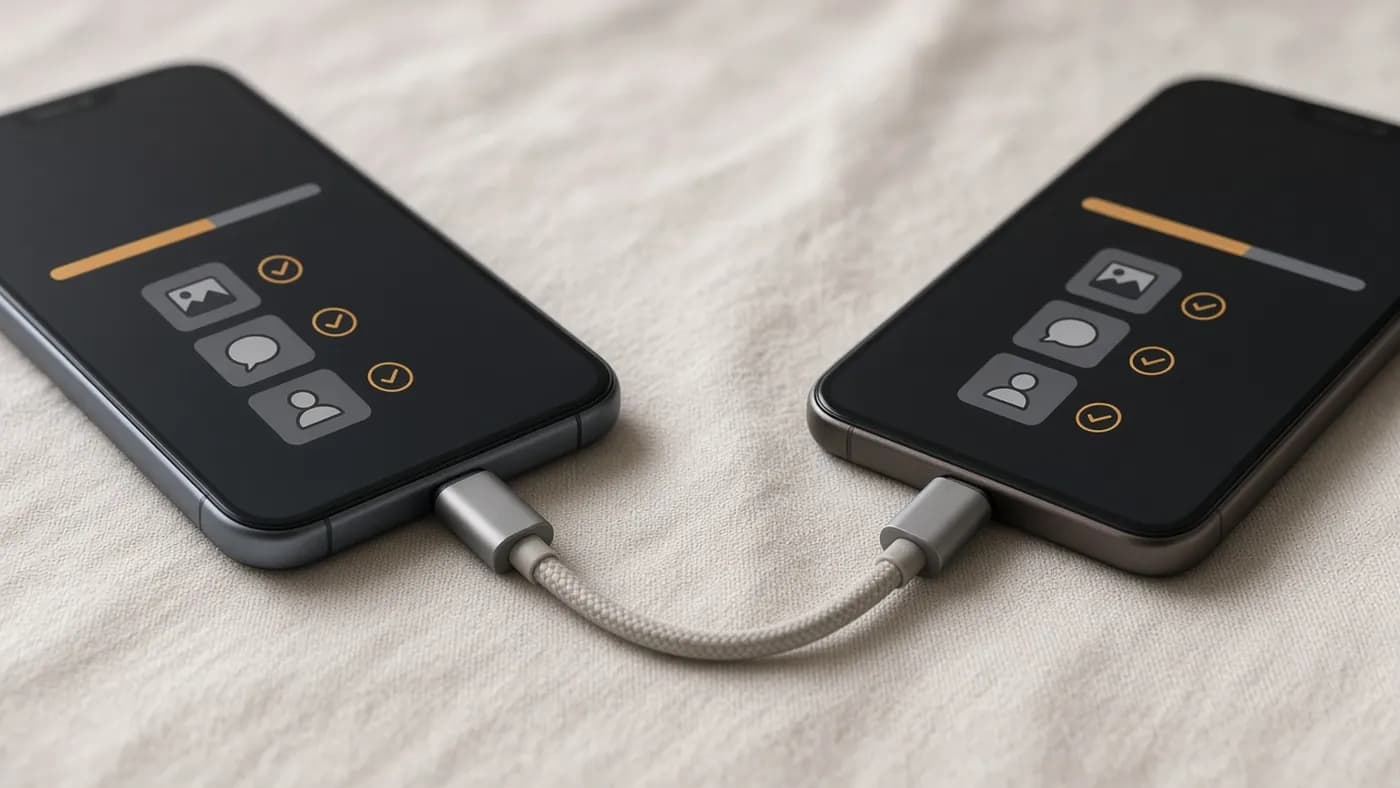
- Connect the phones with your iPhone's cable, using a USB-A to USB-C adapter if it doesn't fit.
- Unlock the iPhone and tap Trust, then choose what to copy and tap Copy.
Google's help pages show the cable is much more complete than going wireless with Google's Switch to Android app for iPhone. The classic wireless route moves only contacts, calendars, photos and videos. A cable adds messages and iMessages, apps, notes, call history and WhatsApp history. With Android 17, Pixel 8 and newer phones get an upgraded transfer, built with Apple, that can also move your eSIM, passwords and passkeys, and Wi-Fi logins. You'll see a QR code right after choosing to copy from an iPhone if your phone qualifies.
On a Galaxy, Smart Switch can also pull from an iPhone by cable or wirelessly.
What doesn't transfer automatically
WhatsApp history is tied to your phone number and platform, and it cannot be merged later. You must move it before you start using WhatsApp on the new phone, and on the same number.
- Android to Android: use WhatsApp's own Chat Transfer. On the new phone, choose Transfer from old phone and scan the QR code, or restore from your Google backup.
- iPhone to iPhone: restore from WhatsApp's iCloud backup using the same Apple Account, or use WhatsApp's in-app chat transfer where it is offered.
- Android to iPhone: select WhatsApp in Move to iOS. Call history and your display name don't come across, and WhatsApp Business isn't supported.
- iPhone to Android: use the cable copy during setup, or WhatsApp's in-app transfer, which WhatsApp began rolling out earlier this year.
Authenticator apps and 2FA
Two-factor codes are the thing most likely to lock you out after a switch.
- Google Authenticator: if you are signed in to your Google Account in the app, codes sync to the new phone automatically. If not, on the old phone go to Menu > Transfer accounts > Export accounts, then scan the QR code with Import accounts on the new phone.
- Microsoft Authenticator: turn on Cloud Backup (iCloud Backup on iPhone) in Settings, then choose Begin Recovery on the new phone. Microsoft says backups only restore to the same platform, and work or school accounts need you to sign in again.
- Other apps: check each one's export option, and have your backup codes handy.
Keep the old phone working until you have tested a login on every account.
Banking and payment apps
Many banking apps register a specific device. Expect to sign in again and verify by text, card details or a call. Tap-to-pay cards in Apple Wallet or Google Wallet need to be re-added and re-verified on the new phone. Do this before you erase the old one, in case your bank sends a code to an app there.
Other things to check
- Signal and other encrypted messengers use their own transfer tools. Follow them during setup.
- Smartwatches usually need unpairing and re-pairing. Apple Watch can restore from its backup.
- Downloaded media (offline maps, podcasts, playlists) often needs downloading again.
What to do with the old phone
Once everything works on the new phone, clean up the old one before it leaves your hands.
iPhone
- Unpair your Apple Watch if it was paired to this phone.
- Go to Settings > [your name] > Sign Out. On iOS 26 and later, you can choose Erase this iPhone here.
- Otherwise, go to Settings > General > Transfer or Reset iPhone > Erase All Content and Settings. If you are selling, erase the eSIM too.
- Confirm it restarts to the Hello screen. That means Find My and Activation Lock are off.
Android
- Remove your Google Account. On Samsung, that's Settings > Accounts and backup > Manage accounts > your Google account > Remove account. Do the same for your Samsung account.
- Reset from Settings, not the recovery menu. On Samsung, go to General management > Reset > Factory data reset. On Pixel, go to System > Reset options > Erase all data. Resetting from Settings with accounts removed avoids Factory Reset Protection locking the next owner out.
- Take out any physical SIM and microSD card.
Trade in, sell or recycle
Carrier and manufacturer trade-ins are the least hassle, but quotes vary a lot, so compare a few before you commit. A phone that is still locked to your account usually won't qualify. If the phone is too old to sell, use a manufacturer or retailer recycling program rather than the kitchen drawer.
Key takeaway: don't erase the old phone until WhatsApp, your authenticator codes and your banking apps are all working on the new one.
FAQ
How long does a phone transfer take?
It depends on how much data you have and how you connect. A small transfer can finish in a few minutes, while a phone full of photos and video can take an hour or more. Cables and fast Wi-Fi help.
Can I transfer data after I have already set up the new phone?
Sometimes. On Android, Pixel 9 and newer phones can run Android Switch after setup from Settings. Most other cross-platform tools, including Move to iOS, only work during setup, so you may need to factory reset the new phone and start again.
Will my eSIM move automatically?
iPhone to iPhone usually works through eSIM Quick Transfer if your carrier supports it. Moving between Android and iPhone is supported by some carriers and phones on recent software. If it isn't offered during setup, your carrier can activate the eSIM for you.
Do I lose my WhatsApp chats if I switch platforms?
No, as long as you use a supported method before activating WhatsApp on the new phone and keep the same number. Move to iOS handles Android to iPhone, and a cable or WhatsApp's own transfer tool handles iPhone to Android.
The bottom line
Moving to a new phone is easier in 2026 than it has ever been. Quick Start, Google's setup copy, Smart Switch and Move to iOS move most of your data, and even switching between iPhone and Android moves far more than it used to. Prepare the old phone, use a cable when you can, deal with WhatsApp, 2FA and banking apps yourself, and only wipe the old device once the new one is fully working.
Join the conversation