Passwords were never a great idea. We reuse them, forget them, type them into fake login pages, and then watch them leak in breaches we never hear about until it is too late. Passkeys are the industry's answer, and in 2026 they are finally mainstream enough that most people can switch their important accounts over in an afternoon.
This guide walks through what a passkey is, where it gets stored, how to create one for the accounts that matter most, and how to avoid locking yourself out. Menu names below reflect current versions of iOS, Android, Windows 11 and the major account dashboards, but companies rename things often, so we note where wording varies.
What a passkey actually is
A passkey is a login credential built on two open standards, FIDO2 and WebAuthn, developed by the FIDO Alliance and the W3C. Instead of a secret you type, your device creates a pair of cryptographic keys for each website. The site keeps the public half, and the private half stays locked on your device or in your password manager.
When you sign in, the site sends a challenge and your device signs it with the private key after you unlock it with your face, fingerprint or device PIN. Your biometric data never leaves the device, and the site never receives anything that could be reused elsewhere.
That design solves the two biggest password problems. There is nothing to phish, because a passkey only works on the real website it was created for. And there is nothing useful to steal in a server breach, because the site only ever held a public key.
Where your passkeys live
Every passkey is stored by a "passkey provider," which is usually the password manager you already use. The main options are below.
| Provider | Works best on | Syncs across | Notes |
|---|---|---|---|
| Apple Passwords (iCloud Keychain) | iPhone, iPad, Mac | Apple devices signed into your Apple Account | Requires iCloud Keychain and two-factor authentication |
| Google Password Manager | Android, Chrome on any OS | Android and Chrome where you are signed in | Default on most Android phones |
| Windows Hello | Windows 10 and 11 PCs | Stays on that PC | Good for a single computer, not a backup |
| Microsoft Password Manager | Edge and Windows | Microsoft account devices | Offered as a save location for Microsoft account passkeys |
| 1Password, Bitwarden, Dashlane | Everything | All platforms the app supports | Best choice if you mix Apple, Android and Windows |
If all your devices are from one ecosystem, the built-in option is simplest. If you carry an iPhone and use a Windows laptop, a cross-platform manager saves a lot of hassle.
Pick your default passkey manager
Before creating any passkeys, tell each device where to save them.
- iPhone and iPad: open Settings, go to General, then AutoFill & Passwords. Make sure Passwords is on, and switch on any third-party manager you want to use as well.
- Pixel and most Android phones: open Settings, tap Passwords, passkeys and accounts, then choose your preferred service. You can also search "password" in Settings.
- Samsung Galaxy phones: open Settings, tap General management, then Passwords, passkeys, and autofill, and choose a preferred service such as Samsung Pass or Google.
- Windows 11: open Settings, go to Accounts, then Passkeys, then Advanced options. Toggle on a third-party manager and confirm with Windows Hello.
On Windows, 1Password supports native passkey saving when installed with its MSIX installer. Bitwarden's native Windows 11 provider was still in beta as of mid-2026, though its browser extension handles passkeys on websites regardless.
Step by step: create passkeys for your main accounts
Start with the accounts that can reset everything else: your email, your platform account and your shopping account. Once those are secure, the rest follows easily.
Google account
- On the phone or computer you want to use, go to myaccount.google.com/signinoptions/passkeys and sign in.
- Select Create a passkey.
- Unlock your device with your fingerprint, face, PIN or pattern when prompted.
- Repeat on other devices that do not share the same passkey manager.
Google supports passkeys on Windows 10, macOS Ventura, ChromeOS 109, Android 9 and iOS 16 or newer. Google warns that a new passkey can take up to seven days before it is trusted at sign-in in some cases, so do not delete your other sign-in methods on day one.
Microsoft account
- Go to account.microsoft.com/security and sign in.
- Select Manage how I sign in.
- Choose Add a new way to sign in or verify.
- Pick Face, Fingerprint, PIN, or Security Key.
- Choose where to save it: your password manager, a phone or tablet, a security key, or Windows Hello on the current PC.
- Confirm with your fingerprint, face or PIN.
You can rename or remove Microsoft passkeys later from the same dashboard. Microsoft recommends adding a new passkey before removing an old one, and some security changes trigger a waiting period as a protection against account takeovers.
Apple Account
Apple handles this differently. There is no "create passkey" button for a personal Apple Account. When you use a device running iOS 17, macOS Sonoma or later with iCloud Keychain on, the device can sign you in to Apple's websites with a passkey automatically.
In practice, on a non-Apple computer you enter your Apple Account email on an Apple sign-in page, choose Sign in with Passkey, and approve it with your iPhone. For extra protection, add hardware security keys, covered below.
Amazon
- Open Amazon in a browser, or open the Amazon Shopping app and tap your profile.
- Go to Your Account, then Login & security.
- Select Set up next to Passkeys.
- Select Set up again and follow the prompts to unlock your device.
Amazon allows one passkey per passkey provider account, and each regional store (such as Amazon.co.uk) needs its own passkey. You can still use your password as a fallback unless you remove it.
Everything else
Once your default manager is set, many sites will simply offer to create a passkey after you sign in. Look for a "passkeys" or "sign-in options" entry in account security settings on services such as PayPal, GitHub, eBay, Best Buy, WhatsApp and many banks.
Apple Passwords and Google Password Manager can also create passkeys automatically on supported sites after you sign in with a saved password. 1Password's Watchtower and similar tools flag saved logins where a passkey is available.
Sign in from a device that does not have your passkey
Sometimes you need to sign in on a work laptop, a friend's computer or a new PC. You do not need to copy the passkey over.
- On the computer, start signing in and choose the passkey option.
- When asked where your passkey is, pick "Use a phone or tablet" or "Use another device."
- A QR code appears. Scan it with your phone's camera.
- Keep Bluetooth on for both devices, since it confirms they are physically near each other.
- Unlock your phone to approve the sign-in.
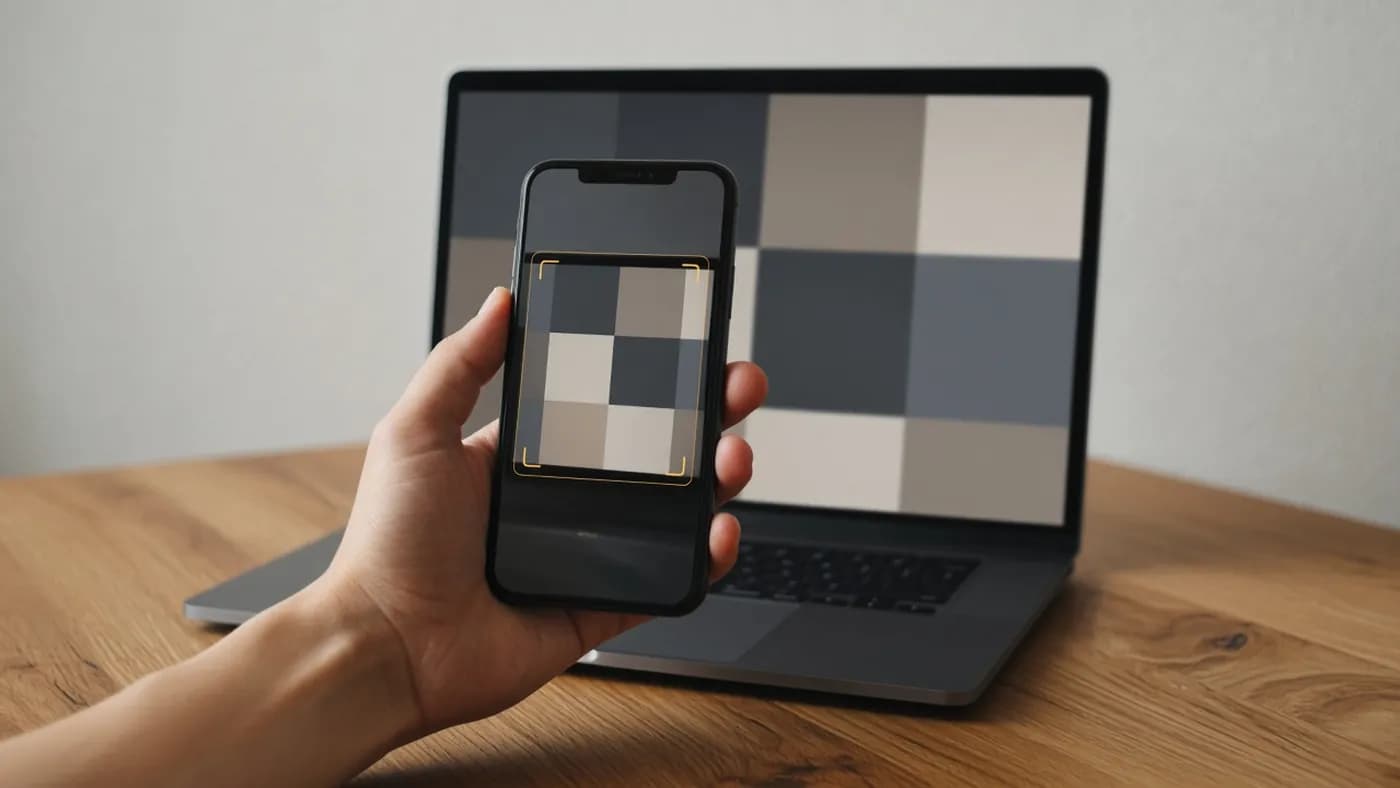
The passkey never leaves your phone. The computer just gets a one-time approval. The Bluetooth check is what stops a phishing site on the other side of the world from using this flow.
Backup and recovery
Losing access to your passkeys is the main risk, so plan for it before you drop passwords.
- Use a synced manager. Passkeys in iCloud Keychain, Google Password Manager or a cross-platform app sync to your other devices, so losing one phone is not a disaster. A passkey saved only to Windows Hello is gone if the PC dies.
- Keep recovery methods current. Check your recovery email, phone number, recovery codes and trusted devices on every major account.
- Protect the manager itself. Your iCloud, Google or 1Password account is now the key to everything, so give it strong two-factor protection.
- Know how to move. Apple Passwords on iOS 26 and later can transfer passkeys to other managers through the FIDO Alliance's Credential Exchange format. Open Passwords, tap the more button, and choose Export Data to Another App. Bitwarden and Dashlane support importing this way, and more managers are adding it. Apple Account passkeys cannot be exported.
Key takeaway: before you retire any password, make sure the passkey is stored in a synced manager and that you have at least one other recovery path, such as a second device, recovery codes or a hardware key.
Hardware security keys
A hardware security key is a small USB-C, Lightning or NFC device that stores passkeys on the key itself. It is the strongest option, since the private key physically cannot be copied, and it works as a backup that does not depend on any cloud account.
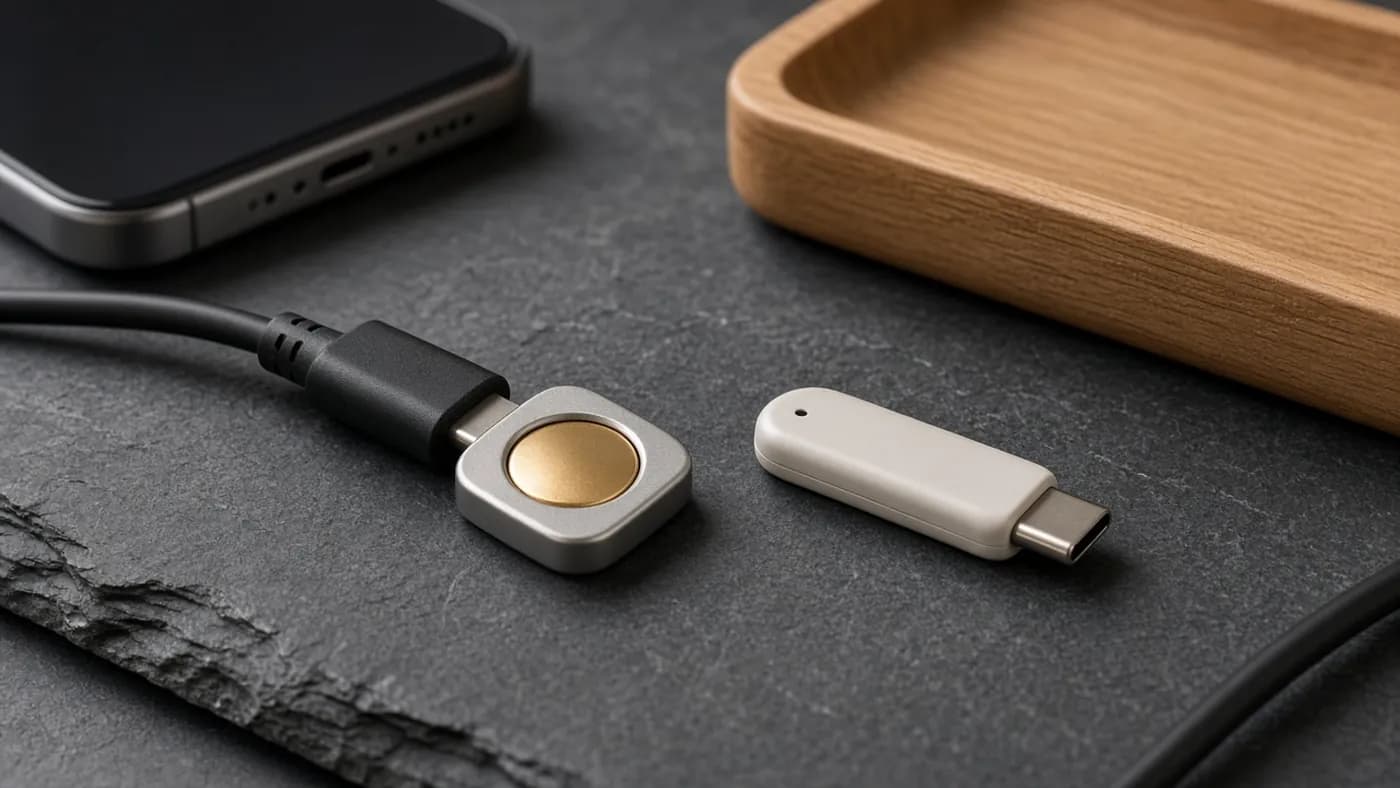
Buy keys that support FIDO2. To add one to Google, go to the same passkeys page, choose Create a passkey, then Use another device, and follow the prompts to insert the key and enter its PIN.
On an iPhone, go to Settings, tap your name, then Sign-In & Security, Two-Factor Authentication, Security Keys, and Add Security Keys. Apple requires at least two keys and allows up to six. Once added, a key replaces six-digit verification codes when you sign in on a new device.
Always register two keys and store the spare somewhere safe. Lose every key and every trusted device, and account recovery gets very hard.
What to do with your old passwords
Passkeys do not delete your passwords automatically. Here is a sensible order of operations.
- Keep passwords as a fallback at first. Use passkeys for a few weeks on each account to confirm everything works across your devices.
- Change any reused or breached passwords. Apple Passwords, Google Password Manager and 1Password all flag weak, reused and compromised passwords. Apple announced an automatic "fix passwords" feature for iOS 27, but delayed it to a future update.
- Make leftover passwords long and random. Let your manager generate them so a leaked password is useless elsewhere.
- Remove passwords where a service allows it. Google, Microsoft and some others let you go fully passwordless. Only do this after your backup methods are in place.
- Delete stale entries. Once an account has a working passkey, clean up old saved logins so autofill does not offer the wrong one.
FAQ
Are passkeys safer than passwords with two-factor authentication?
Generally yes. Text-message codes and authenticator codes can be phished by a convincing fake site, while a passkey only works on the genuine site it was created for. A passkey also combines the "something you have" and "something you are" factors in one step.
What happens if I lose my phone?
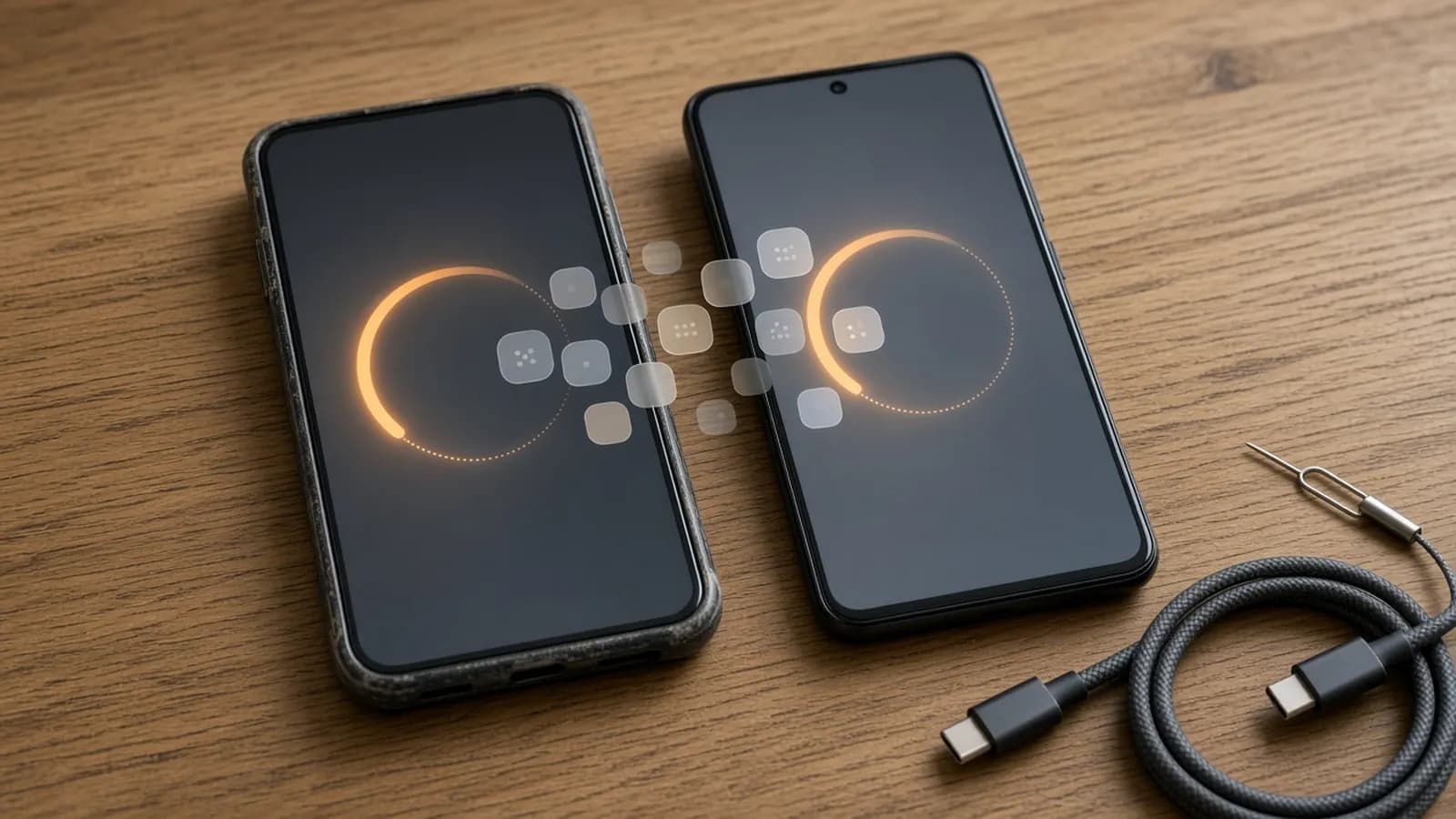
If your passkeys are in a synced manager, sign in to that manager on your new phone and they come back. If they were saved only on the lost device, use your recovery options or another passkey to get in, then remove the old passkey from your account settings.
Can someone who knows my phone PIN use my passkeys?
Yes. Anyone who can unlock your device can use passkeys stored on it, which is why Google says to create passkeys only on devices you personally own. Use a strong device passcode and do not share it.
Do I need a hardware security key?
Most people do not. A synced passkey manager is secure and convenient. Hardware keys make sense for high-value accounts, for anyone at risk of targeted attacks, or as an offline backup.
The bottom line
Passkeys are ready for everyday use. Pick one passkey manager, add passkeys to your Google, Microsoft, Apple and Amazon accounts, and check your recovery options before touching old passwords. Add a pair of hardware keys if you want extra insurance, and let the remaining passwords fade out one account at a time.

Join the conversation