Most of the protection your phone needs is already built in. It just isn't all switched on by default, and the settings are spread across a dozen menus. That is what this checkup is for.
Set a timer for 15 minutes, plug your phone into a charger, and work through the steps below in order. Everything here applies to iPhones on iOS 26 and Android phones on Android 16 or later, including Pixels that have already moved to Android 17. Where Samsung's One UI uses different menu names, we point that out.
Key takeaway: The three steps that matter most are updating your phone, turning on theft protection (Stolen Device Protection on iPhone, Identity Check on Android), and locking your phone number with your carrier. If you only have five minutes, do those.
Before you start
You will need your phone's passcode, your Apple Account or Google Account password, and access to your carrier's app or website. Keep a laptop or tablet nearby too. Some account checks are easier on a bigger screen.
Menu names on Android vary by manufacturer. If a path below doesn't match your phone, use the search bar at the top of the Settings app and type the feature name, such as "Theft protection" or "SIM lock." That works on Pixel, Samsung, and most other brands.
The checkup, step by step
1. Update the operating system
Updates close security holes that attackers already know about, so this step comes first. Apple shipped iOS 26.6.1 in mid-August as a security update, and iOS 27 is expected this fall. Android security patches arrive monthly on many recent phones.
On iPhone:
- Open Settings > General > Software Update.
- Install anything waiting, then tap Automatic Updates and turn on both download and install options, including Security Responses & System Files.
On Android:
- On a Pixel, open Settings > System > Software updates. On a Samsung phone, open Settings > Software update.
- Install the system update, then check Google Play system updates too. On Pixels, you'll find these under Settings > Security & privacy > System & updates.
2. Use a strong passcode and biometrics
A six-digit code is the minimum. A longer code or an alphanumeric password is better, because it's much harder to guess or spot over your shoulder. That matters more than you might think, since many phone thefts start with someone watching the victim unlock their phone in public.
On iPhone, go to Settings > Face ID & Passcode (or Touch ID & Passcode) > Change Passcode, then tap Passcode Options to pick Custom Alphanumeric Code or Custom Numeric Code. On a Pixel, go to Settings > Security & privacy > Device unlock > Screen lock. On a Samsung phone, look under Settings > Lock screen and AOD > Screen lock type.
Set up Face ID, Touch ID, fingerprint, or face unlock while you're there. Biometrics are required for the theft protection features in the next two steps.
3. iPhone: turn on Stolen Device Protection and run Safety Check
Stolen Device Protection makes a stolen passcode far less useful. When your iPhone is away from familiar places like home or work, changing your Apple Account password, passcode, or Face ID requires biometrics and a one-hour security delay.
- Go to Settings > Face ID & Passcode and enter your passcode.
- Tap Stolen Device Protection and turn it on.
- For maximum protection, choose Always under Require Security Delay, so the delay also applies at home and at work.
Next, open Settings > Privacy & Security > Safety Check (you may need to scroll down). Choose Manage Sharing & Access to review who can see your location, which apps have access to sensitive data, and which devices are signed in to your account. Remove anything you don't recognize.
4. Android: turn on Theft Protection and Identity Check
Android's theft protection bundle does a similar job. Identity Check asks for your fingerprint or face, with no PIN fallback, for sensitive changes when you're outside your trusted places.
- On most phones, open Settings > Google > All services > Theft protection. On recent Pixels, the same page also appears under Settings > Security & privacy > Device unlock > Theft protection.
- Turn on Theft Detection Lock, Offline Device Lock, and Remote Lock if they aren't already on.
- Tap Identity Check, then follow the setup: confirm your screen lock, enroll a fingerprint or face, and add trusted places such as home.
On Samsung phones, go to Settings > Security and privacy > Lost device protection > Theft protection > Identity check. Samsung adds a one-hour security delay for changes like turning off Find My Mobile. If Identity Check doesn't appear at all, your phone doesn't support it yet. You'll need a Class 3 (secure) biometric sensor, and support depends on the manufacturer.
5. Run the Google and Apple account security checkups
Your phone is only as safe as the account behind it. Both companies offer a guided review.
On Android, open Settings > Google > Manage your Google Account > Security, or visit myaccount.google.com/security-checkup on any browser. Security Checkup flags old devices still signed in, third-party apps with account access, missing recovery options, and weak passwords.
On iPhone, go to Settings > [your name] > Sign-In & Security. Confirm your trusted phone numbers and email, and consider setting up a recovery contact. Then open the Passwords app and check its security recommendations for reused or compromised passwords.
6. Review app permissions for location, camera, and microphone
Apps pick up permissions over the years, and many never need them again. Focus on location, camera, and microphone first.
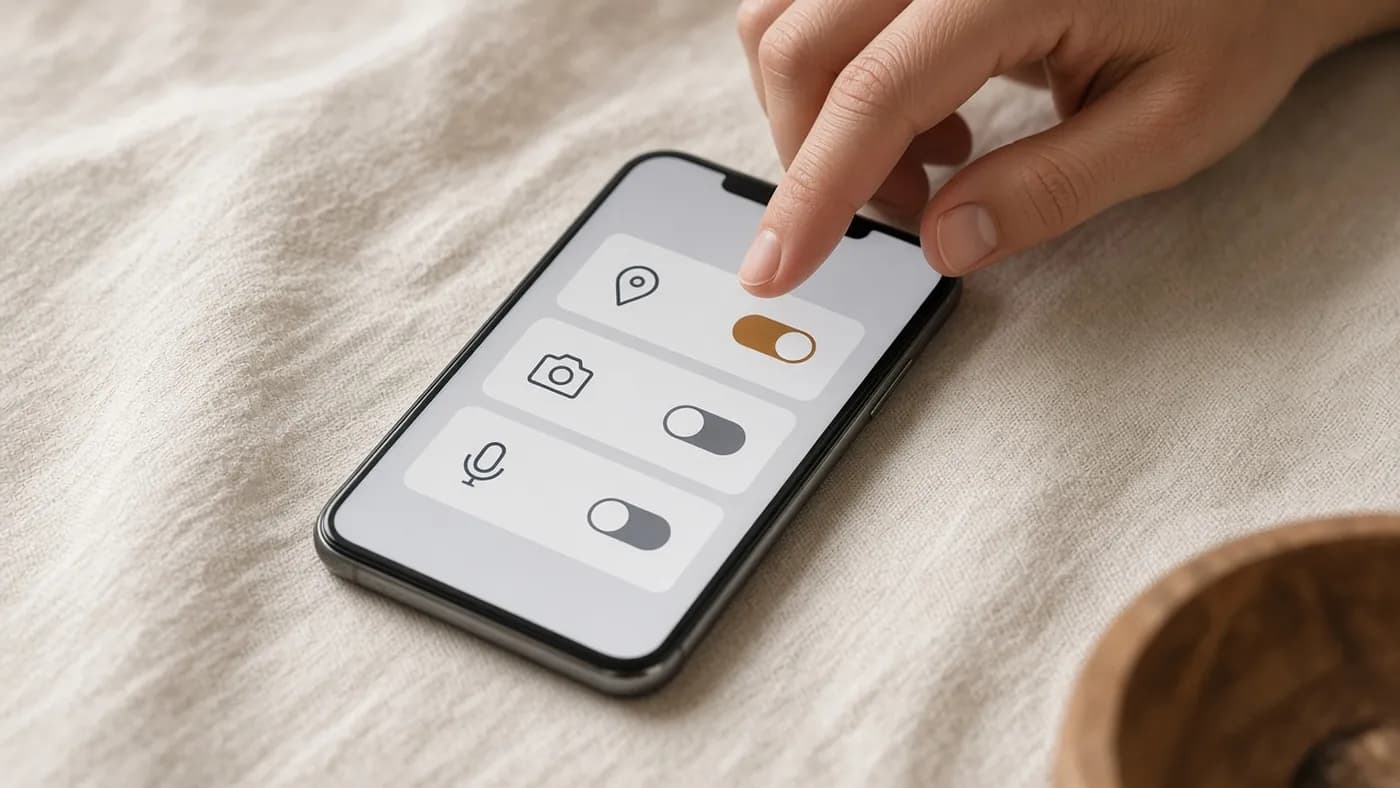
On iPhone, work through these screens:
- Settings > Privacy & Security > Location Services. Set most apps to Never or While Using the App, and turn off Precise Location for apps that only need a rough idea, like weather.
- Settings > Privacy & Security > Camera, then Microphone. Switch off anything that has no obvious reason to use them.
On a Pixel, open Settings > Security & privacy > Privacy controls > Permission manager. On a Samsung phone, go to Settings > Security and privacy > More privacy settings > Permission manager. The Privacy dashboard on the same pages shows which apps actually used each permission recently.
7. Remove apps you no longer use
Every app you keep is another piece of code that needs updates and another company holding your data. Deleting what you don't use takes two minutes.
On iPhone, Settings > General > iPhone Storage lists apps by size and shows when you last used each one. On Android, open the Play Store, tap your profile picture, then Manage apps & device > Manage, and sort by least used. Android also resets permissions for apps you haven't opened in months, but deleting them is cleaner.
If you'd rather not delete, iPhones can offload apps automatically when storage runs low: Settings > Apps > App Store > Offload Unused Apps. Offloading keeps your data, though, so it's a storage tool, not a privacy one.
8. Turn on two-factor authentication for key accounts
Two-factor authentication (2FA) stops most password-only attacks. Apple Accounts use it by default. You can confirm under Settings > [your name] > Sign-In & Security > Two-Factor Authentication. For Google, Security Checkup shows whether 2-Step Verification is on.
Next, move on to your email, bank, and social accounts. Where you can, use passkeys or an authenticator app instead of text-message codes, because SMS codes can be intercepted by anyone who hijacks your phone number. That's also why the next step matters.
9. Lock your SIM and your phone number
A SIM PIN stops a thief from putting your SIM card in another phone to receive your calls and codes. A carrier lock stops a scammer from moving your number to a new SIM or carrier without your approval.
For the SIM PIN on iPhone, go to Settings > Cellular > SIM PIN. On Dual SIM phones, tap the line first. On Android, search Settings for "SIM lock." On Samsung phones, it usually sits under Security and privacy > More security settings. Use your carrier's default PIN the first time, then change it. Don't guess, because too many wrong tries lock the SIM until you enter a PUK code from your carrier.
Then turn on your carrier's number protection:
| Carrier | Feature | Where to turn it on |
|---|---|---|
| Verizon | Number Lock and SIM Protection | My Verizon app or account |
| T-Mobile | Port Out Protection and SIM Protection | T-Life app or T-Mobile.com |
| AT&T | Wireless Account Lock | myAT&T app |
Other carriers often have similar options under a different name. Search their support site for "port-out protection" or "number lock." Also set an account PIN that customer service will ask for.
10. Confirm Find My or Find Hub is on
If your phone goes missing, tracking it depends on settings you have to turn on in advance.
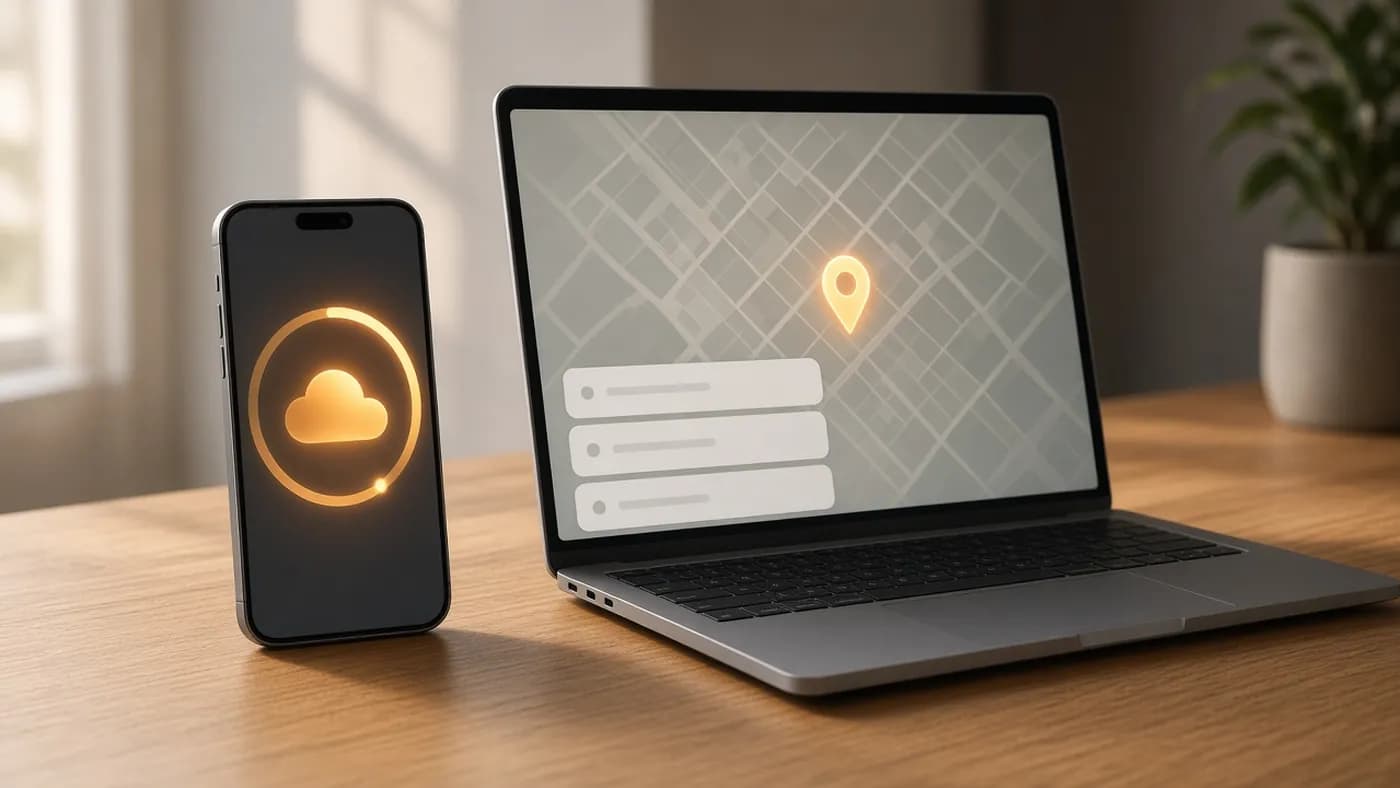
On iPhone, go to Settings > [your name] > Find My > Find My iPhone. Make sure Find My iPhone, Find My network, and Send Last Location are all on.
On Android, Google's Find My Device is now called Find Hub. On a Pixel, open Settings > Security & privacy > Device finders and confirm Allow device to be located is on. Then sign in at the Find Hub website once so you know how to use it. Samsung phones also offer Samsung's own Find My Mobile under Security and privacy > Lost device protection.
11. Hide sensitive notifications on the lock screen
Message previews and sign-in codes on your lock screen are visible to anyone holding your phone. Hiding them takes seconds.
On iPhone, go to Settings > Notifications > Show Previews and choose When Unlocked. While you're at it, open Settings > Face ID & Passcode and review the Allow Access When Locked list. You can turn off things you don't need, like USB Accessories.
On a Pixel, go to Settings > Notifications > Notifications on lock screen and hide sensitive content. Android 16 also automatically hides one-time passcodes on the lock screen in higher-risk situations. On Samsung, go to Settings > Notifications > Hide content while locked and choose Hide when locked.
12. Check that your backups are actually running
A backup turns a stolen or broken phone into an inconvenience rather than a disaster. Check the date of your last backup, not just the switch.
On iPhone, open Settings > [your name] > iCloud > iCloud Backup, make sure Back Up This iPhone is on, and look at the last successful backup time. On Android, open Settings > Google > All services > Backup and confirm Backup by Google One is on. Every Google Account includes 15GB of free storage, shared with Gmail and Photos. On Samsung, Settings > Accounts and backup covers both Google and Samsung Cloud backups.
Your 15-minute checklist
Keep this table handy for the next time you run through the checkup.
| Step | iPhone (iOS 26) | Android (16 and later) | Time |
|---|---|---|---|
| Update | General > Software Update | System > Software updates | 2 min |
| Passcode and biometrics | Face ID & Passcode | Security & privacy > Device unlock | 1 min |
| Theft protection | Stolen Device Protection, set to Always | Theft protection > Identity Check | 2 min |
| Sharing review | Privacy & Security > Safety Check | Security & privacy status page | 1 min |
| Account security | Sign-In & Security, Passwords app | myaccount.google.com/security-checkup | 2 min |
| App permissions | Privacy & Security > Location, Camera, Microphone | Permission manager, Privacy dashboard | 2 min |
| Unused apps | iPhone Storage | Play Store > Manage apps & device | 1 min |
| 2FA | Two-Factor Authentication | 2-Step Verification | 1 min |
| SIM and number | Cellular > SIM PIN, carrier lock | SIM lock, carrier lock | 1 min |
| Find My | Find My iPhone, Send Last Location | Find Hub, Allow device to be located | 30 sec |
| Lock screen | Show Previews: When Unlocked | Hide sensitive content | 30 sec |
| Backups | iCloud Backup | Backup by Google One | 30 sec |
How often to repeat it
Run the full checkup twice a year, and after every major OS upgrade. Big updates sometimes add new security settings that are switched off by default.
Some events call for a checkup right away: buying a new phone, ending a relationship, or getting an alert about a new sign-in you don't recognize. In those cases, start with Safety Check or Google Security Checkup.
FAQ
Will Stolen Device Protection or Identity Check lock me out of my own phone?
No. At home or at other familiar or trusted places, you can change settings normally. Away from them, you'll need Face ID, Touch ID, or your fingerprint, and a few sensitive changes add an hour's wait. It's a small hassle that makes a stolen passcode far less useful to a thief.
My Android phone doesn't show Identity Check. What should I do?
Install any pending system updates first, then search Settings for "Identity Check." If it still isn't there, your phone or its software doesn't support it yet. Turn on the other theft protection options and a strong screen lock in the meantime.
Is a SIM PIN still worth it if I use an eSIM?
Yes. The SIM PIN locks cellular service after the phone restarts, which stops a thief from using your line to receive calls and verification texts. The carrier lock is separate. It stops someone from moving your number remotely, so you want both.
Do I need a third-party antivirus or security app?
For most people, no. The built-in protections covered here, plus Google Play Protect on Android and App Store review on iPhone, handle the common threats. Be especially wary of "cleaner" or "booster" apps that ask for broad permissions.
The bottom line
A phone security checkup doesn't need special tools or much time. It needs 15 focused minutes and the willingness to open a few menus you normally skip. Update first, turn on theft protection, lock your number, and make sure Find My and your backups are ready before you need them. Then put a reminder in your calendar to do it again in six months.

Join the conversation