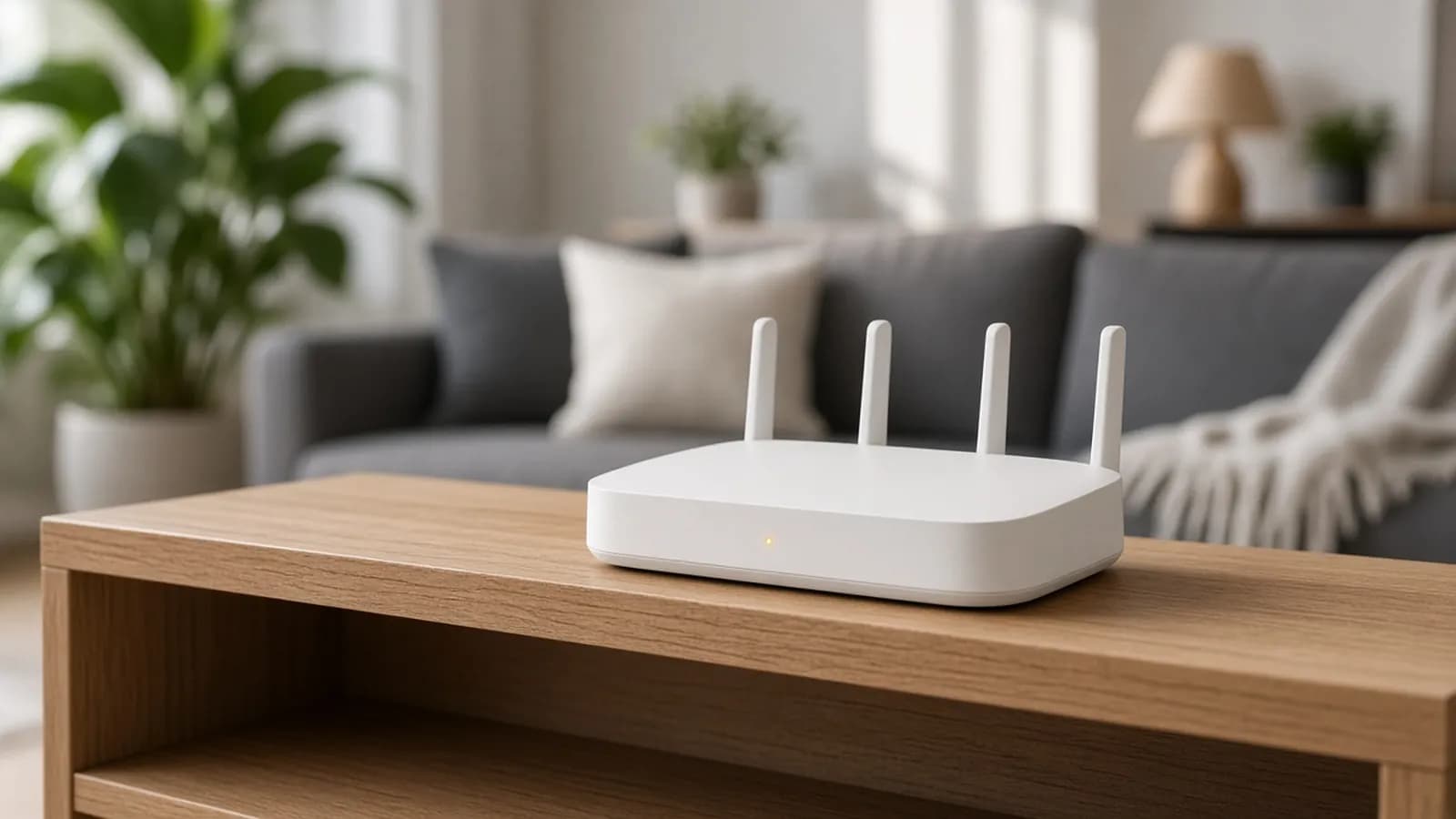
Slow Wi-Fi is one of the most common tech complaints, and it rarely has a single cause. The problem might be where the router sits, a crowded channel, one device hogging the connection, or an issue on your provider's side that no router setting can fix.
The trick is to work through the causes in order, cheapest and easiest first. This guide walks you through each step, from measuring your speed properly to deciding whether a Wi-Fi 7 upgrade is worth it.
Key takeaway: Always compare a wired speed test with a wireless one before changing anything. If the wired result is slow too, the problem is your modem or ISP, not your Wi-Fi.
Step 1: Measure your speed the right way
A single speed test on your phone from the far end of the house tells you very little. You need two measurements: one that shows what your internet connection delivers, and one that shows what your Wi-Fi delivers.
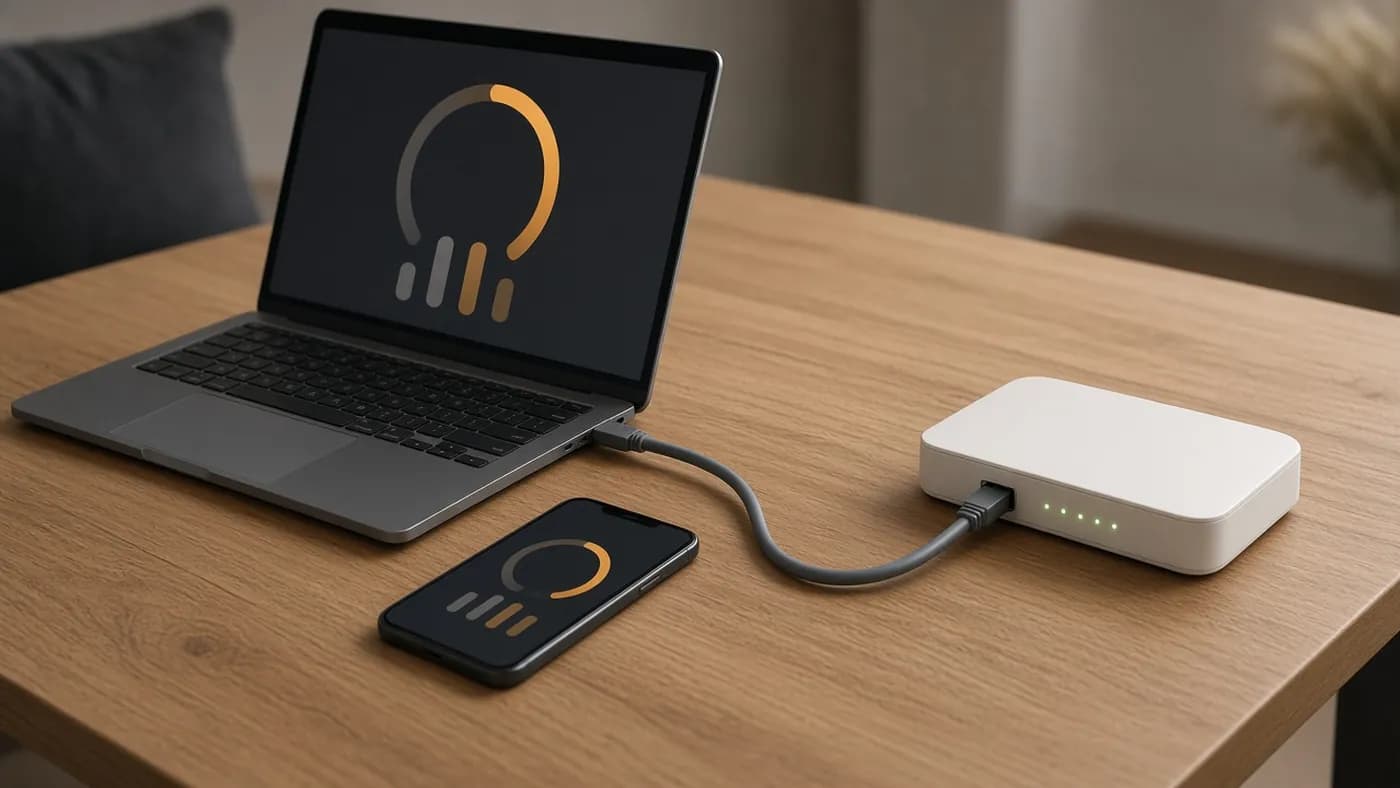
- Connect a laptop directly to the router with an Ethernet cable and run a speed test. This is your baseline.
- Unplug the cable, stand in the same room as the router, and run the test again over Wi-Fi.
- Repeat the Wi-Fi test in the rooms where it feels slow.
- Run the tests at a quiet time and again in the evening, when neighborhood traffic usually peaks.
- Pick a test that also reports latency under load. High latency during a download, often called bufferbloat, explains laggy video calls and games even when raw speed looks fine.
Now compare. If the wired result is close to your plan's speed but Wi-Fi is much lower, keep reading. If the wired result is also low, skip ahead to the ISP section.
Check what your device is actually connected to
Your device's link speed and band tell you a lot. On Windows 11, go to Settings > Network & internet > Wi-Fi, then open Hardware properties or your connected network's properties to see Protocol, Network band, Channel, and Link speed. On a Mac, hold the Option key and click the Wi-Fi icon in the menu bar to see the channel, band, PHY mode, and transmit rate.
On Android, tapping the connected network usually shows frequency and link speed, though the exact path varies by manufacturer. iPhones don't show the band directly, so rely on your router's app for those devices.
Step 2: Move the router
Placement is the fix people skip, and it often makes the biggest difference. Wi-Fi signals weaken with distance and with every wall, floor, and appliance they pass through.
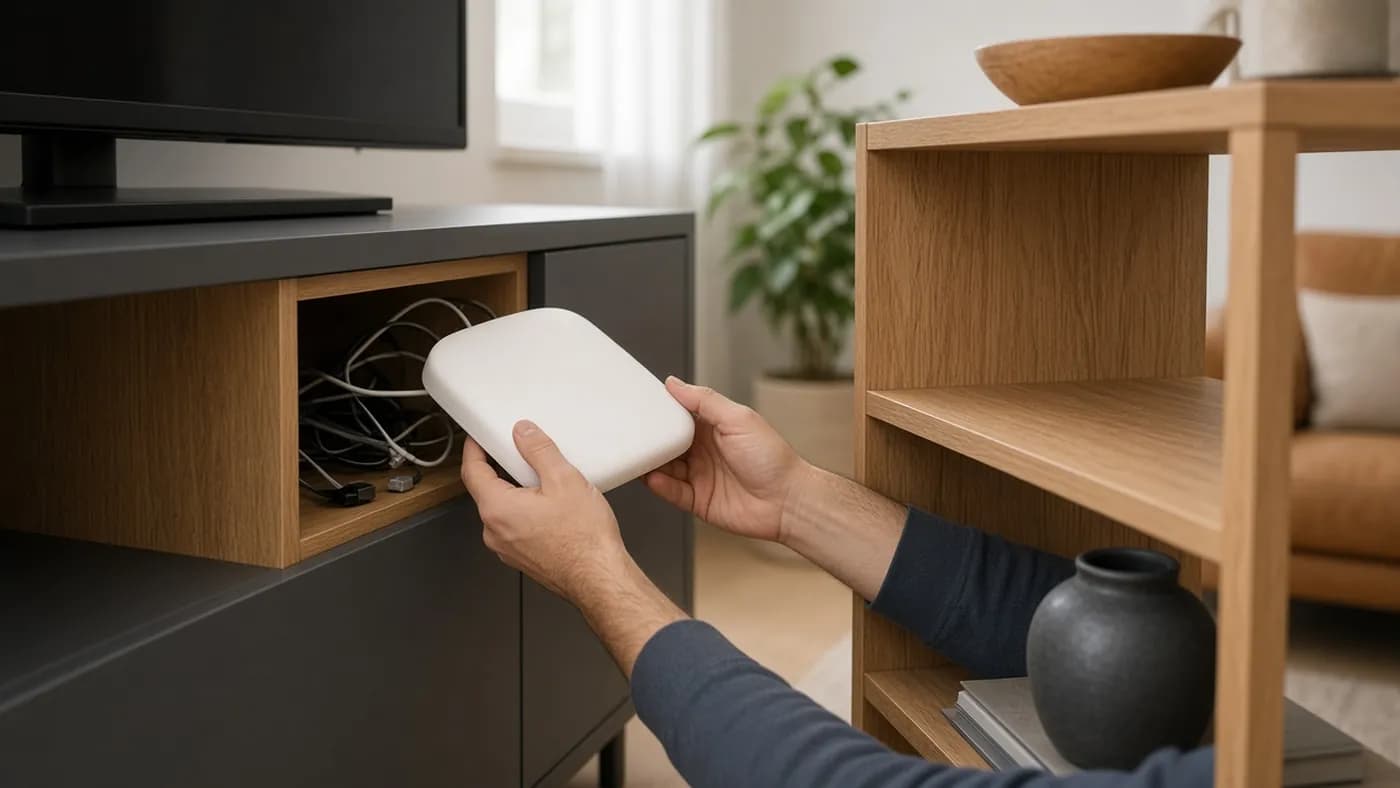
- Put the router as close to the center of your home as the cable allows.
- Raise it off the floor onto a shelf or the top of a bookcase.
- Get it out of cabinets, closets, and the space behind the TV.
- Keep it away from large metal objects, mirrors, fish tanks, and microwaves.
- If it has adjustable antennas, point some straight up and some sideways to cover more directions.
If your modem is in a corner of the house, a longer Ethernet cable between the modem and the router often lets you move the router somewhere central without any new equipment.
Step 3: Restart and update the firmware
A restart clears memory leaks and stuck connections, and it's free. Firmware updates fix bugs, patch security flaws, and sometimes improve performance.
- Unplug the modem and router, wait about 30 seconds, then plug the modem back in first.
- Once the modem's lights settle, plug in the router.
- Open your router's app, or type its address into a browser, and look for a firmware or software update section.
- Install any available update and turn on automatic updates if the router offers them.
If your router has stopped receiving firmware updates entirely, treat that as a sign it's time to replace it. ISP-supplied gateways usually update automatically, so check with your provider if you're unsure.
Step 4: Use the right band and let band steering work
Most routers broadcast on 2.4 GHz and 5 GHz, and newer ones add 6 GHz. Each band trades range for speed.
| Band | Range | Speed | Congestion | Best for |
|---|---|---|---|---|
| 2.4 GHz | Longest, best through walls | Slowest | Often crowded | Smart-home gadgets, distant rooms |
| 5 GHz | Medium | Fast | Moderate | Most phones, laptops, and TVs |
| 6 GHz | Shortest, weakest through walls | Fastest | Usually lightly used | Newer devices in the same or next room |
Band steering puts all bands under one network name and moves each device to the best band automatically. It works well on most modern routers, so leave it on as your default.
If a device keeps clinging to 2.4 GHz while sitting near the router, try temporarily splitting the bands into separate network names in the router settings. Connect that device to the 5 GHz or 6 GHz name, test again, and merge the names back if nothing changes. Some older smart plugs and cameras only work on 2.4 GHz, so a separate 2.4 GHz network can also make setup easier.
Note that 6 GHz requires a device that supports Wi-Fi 6E or Wi-Fi 7, it uses WPA3 security, and availability of 6 GHz channels varies by country.
Step 5: Fix channel congestion
In apartments and dense neighborhoods, dozens of networks can share the same airwaves. Your router may be fighting its neighbors for airtime.
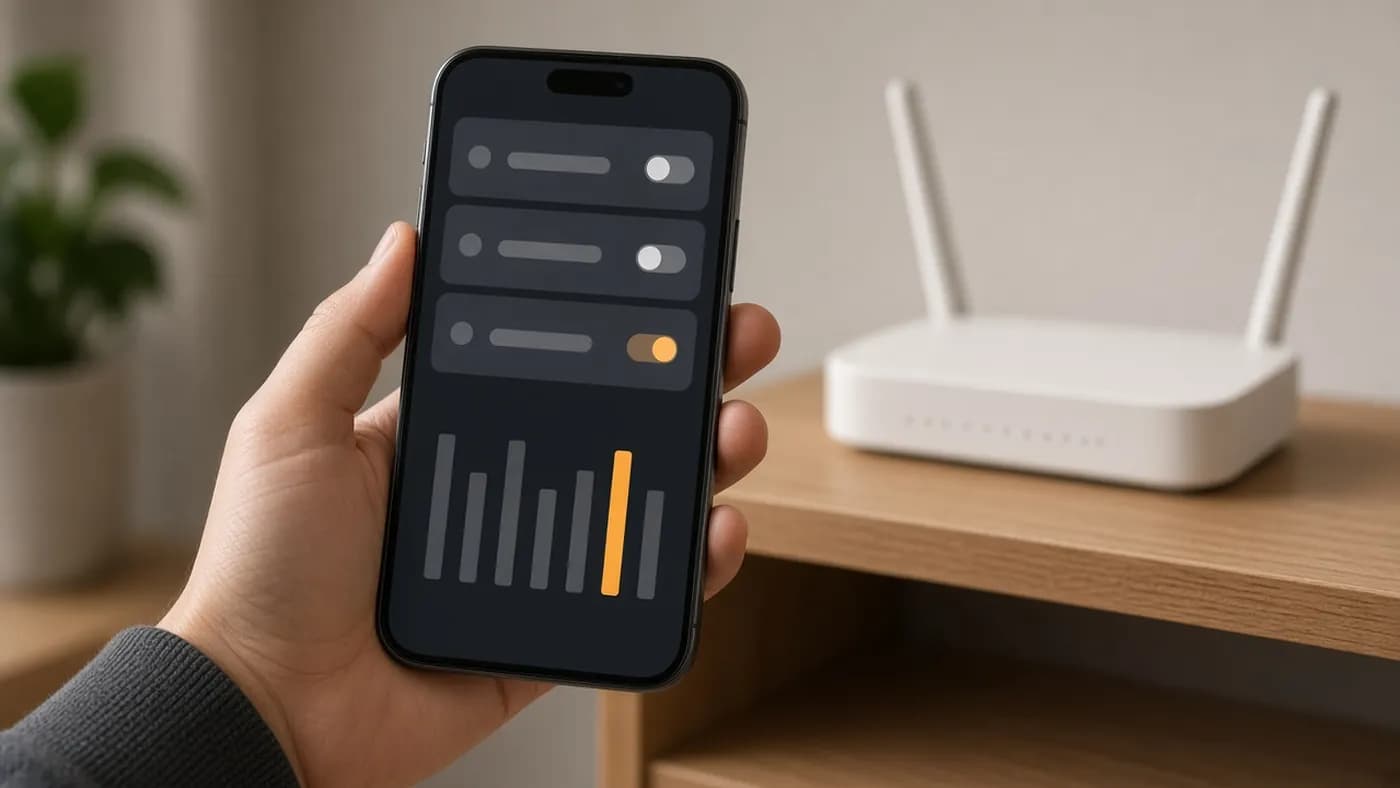
- Open your router's app or settings and find the wireless or channel section.
- Try the automatic channel option first, then restart the router so it rescans.
- If performance is still poor on 2.4 GHz, set the channel manually. In North America, stick to channels 1, 6, or 11, which don't overlap.
- On 2.4 GHz, use a 20 MHz channel width. Wider channels on this band mostly add interference.
- On 5 GHz, try 80 MHz first. 160 MHz can be faster close to the router but is more sensitive to interference.
- If your router supports DFS channels on 5 GHz, enabling them opens more spectrum, though the router may briefly switch channels if it detects nearby radar.
Many router apps include a scan that shows how crowded each channel is. On Android, free Wi-Fi analyzer apps do the same job.
Step 6: Find bandwidth hogs and set up QoS
Sometimes the Wi-Fi is fine and one device is simply eating the connection. Cloud photo backups, large game downloads, 4K streams, and security cameras uploading footage are the usual suspects.
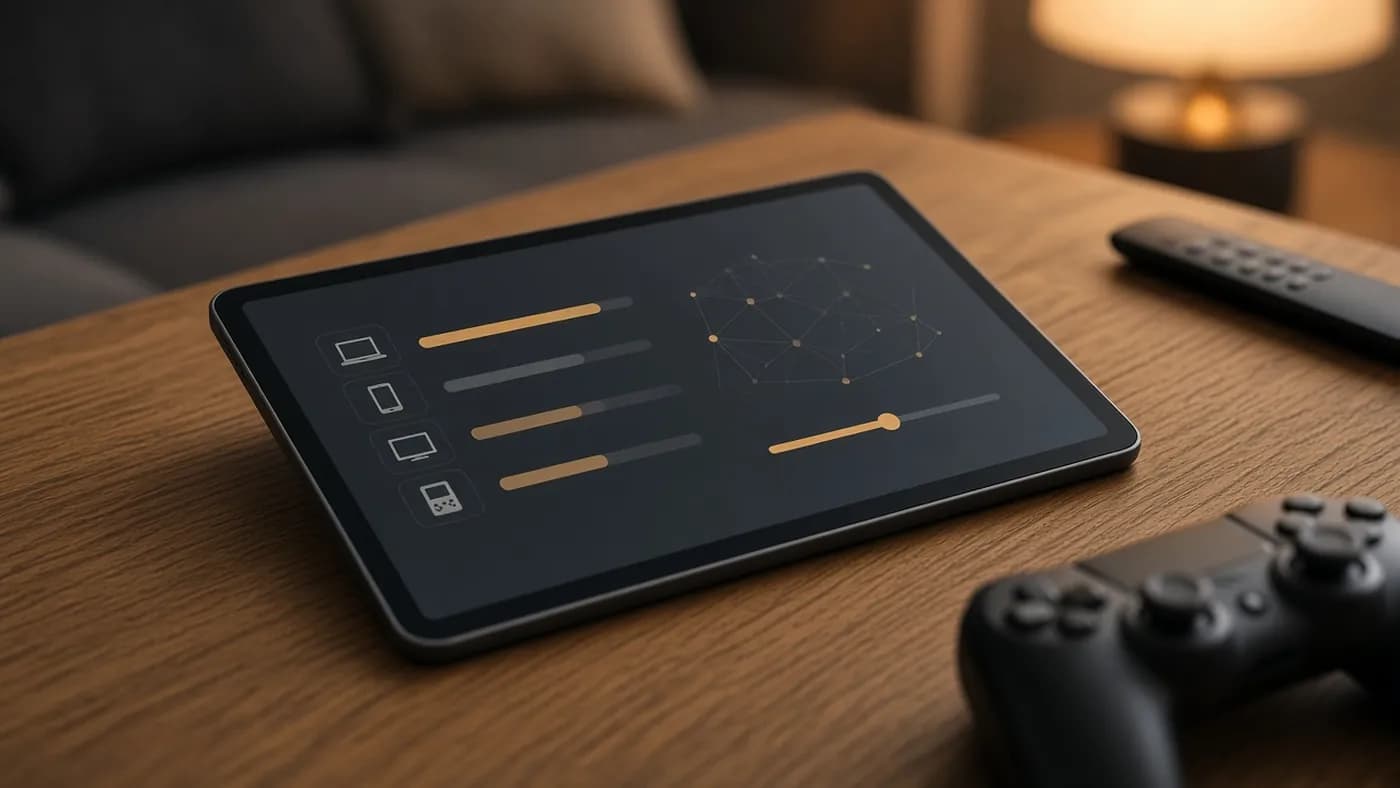
- Open your router's app and look at the connected devices list. Most apps show live or recent usage per device.
- Identify anything unexpected, including devices you don't recognize. Change your Wi-Fi password if you find strangers.
- Schedule big backups and game updates for overnight where the app allows it.
- Turn on QoS (quality of service) and prioritize work laptops, video calls, or game consoles.
- If your router offers a smart queue or anti-bufferbloat feature, enable it and set it close to your real internet speed.
QoS can't create bandwidth you don't have. It decides who goes first when the connection is full, which is often what makes calls and games feel smooth again.
Step 7: Choose mesh or an extender for dead zones
If some rooms are still slow after everything above, the house may simply be too big or too walled for one router. You have two main options.
A Wi-Fi extender is cheap and plugs into an outlet between the router and the dead zone. It rebroadcasts the router's signal, but it has to receive and resend over the air, so speed drops, and you may end up with a second network name.
A mesh system uses two or more nodes that work together as one network with one name. Better systems reserve a dedicated radio for traffic between nodes, called backhaul, which keeps speeds up. Mesh costs more but is the better choice for most multi-room homes.
For either option, place the extra unit about halfway between the router and the dead zone, where the signal is still strong. Putting it inside the dead zone defeats the purpose.
Step 8: Use wired backhaul with Ethernet, MoCA, or powerline
The best mesh network is one where the nodes connect with cables. Wired backhaul frees the Wi-Fi radios to serve your devices instead of talking to each other.
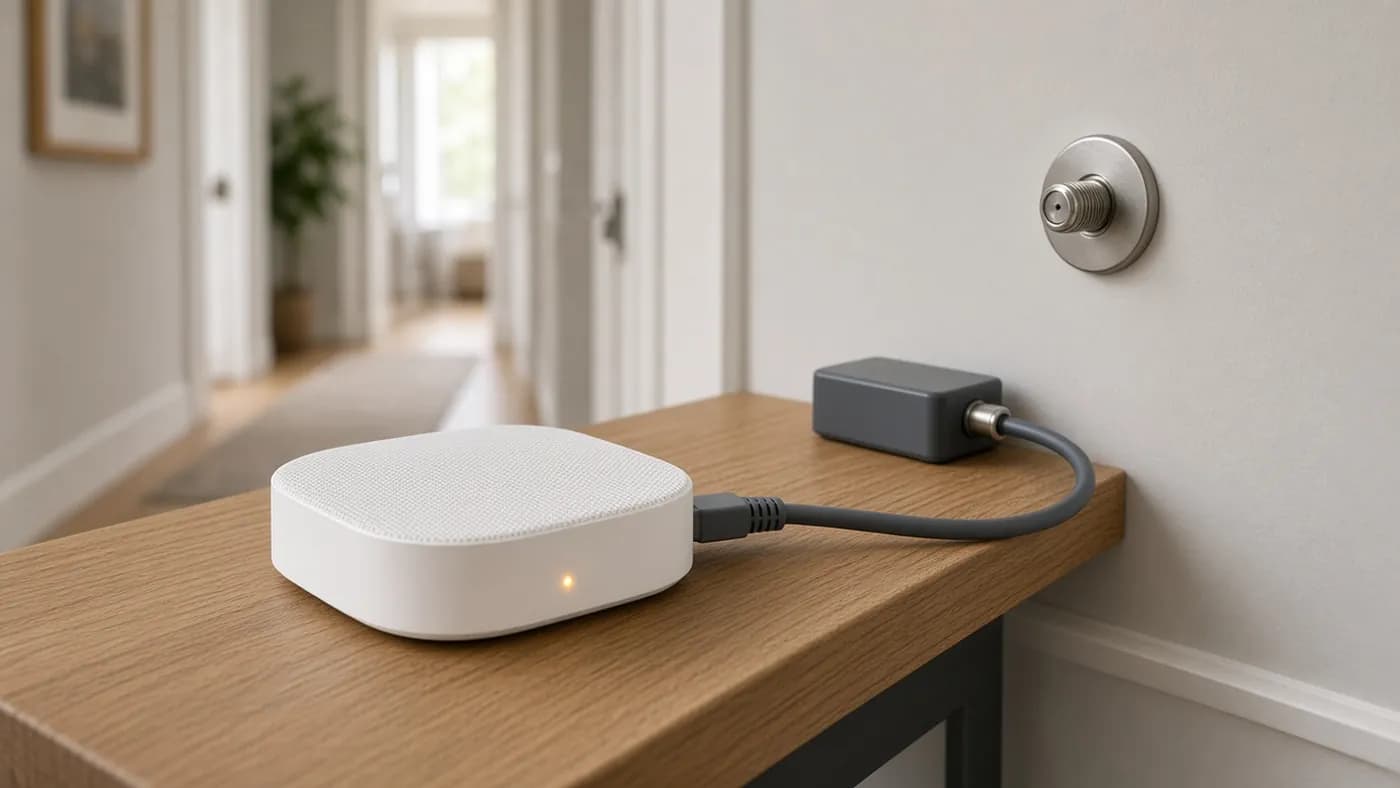
- Ethernet is the gold standard. Cat 5e or Cat 6 cable handles gigabit speeds and beyond, and many mesh nodes have an Ethernet port for backhaul.
- MoCA sends network traffic over the coaxial TV cable already in many homes. MoCA 2.5 adapters are rated up to 2.5 Gbps. You need MoCA-rated splitters, and a point-of-entry filter where the coax enters the house keeps the signal inside and avoids interference with cable internet.
- Powerline adapters use your electrical wiring. Results vary widely with the age and layout of the wiring, and they work best on the same circuit and plugged directly into wall outlets rather than power strips. G.hn and HomePlug AV2 adapters don't work with each other, so buy a matched set.
Try Ethernet first, MoCA second if you have coax outlets in the right rooms, and powerline if neither is practical.
Step 9: Decide whether to upgrade to Wi-Fi 7
If your router is several years old, a new one may solve problems no setting can. Here is how the generations compare.
| Standard | IEEE name | Wi-Fi Alliance certification | Bands | Max channel width | Theoretical top speed | Headline feature |
|---|---|---|---|---|---|---|
| Wi-Fi 4 | 802.11n | 2009 | 2.4 and 5 GHz | 40 MHz | 600 Mbps | MIMO antennas |
| Wi-Fi 5 | 802.11ac | 2013 | 5 GHz | 160 MHz | About 6.9 Gbps | Wider channels, MU-MIMO |
| Wi-Fi 6 | 802.11ax | 2019 | 2.4 and 5 GHz | 160 MHz | 9.6 Gbps | OFDMA for busy networks |
| Wi-Fi 6E | 802.11ax | 2021 | Adds 6 GHz | 160 MHz | 9.6 Gbps | Access to 6 GHz |
| Wi-Fi 7 | 802.11be | 2024 | 2.4, 5, and 6 GHz | 320 MHz | About 46 Gbps | Multi-Link Operation (MLO) |
| Wi-Fi 8 | 802.11bn | Not yet ratified (expected around 2028) | To be confirmed | To be confirmed | Similar to Wi-Fi 7 | Reliability improvements |
Theoretical speeds are lab maximums across all streams. Real homes see a fraction of them.
A Wi-Fi 7 upgrade makes sense if your router is Wi-Fi 5 or older, if you pay for a plan faster than about 1 Gbps, or if you own recent phones and laptops that support Wi-Fi 7. MLO lets compatible devices use more than one band, which mainly improves reliability and latency on busy networks.
Shop carefully. Only a handful of features are mandatory for Wi-Fi 7 certification, and some cheaper Wi-Fi 7 routers are dual-band models without a 6 GHz radio. 320 MHz channels also work best at short range with a clear line of sight. Waiting for Wi-Fi 8 doesn't make sense for most people, since the standard isn't expected to be finalized for a couple of years.
Step 10: Rule out problems on the ISP side
If your wired test was slow, no amount of Wi-Fi tuning will help. The bottleneck is upstream.
- Check your provider's outage page or app for problems in your area.
- Confirm which plan you pay for. Promotional speeds sometimes lapse after a contract ends.
- Look at the modem's status lights and restart it.
- Make sure your modem is current. An older cable modem may not support your plan's speed; your ISP can tell you.
- If you use your own router behind an ISP gateway, put the gateway in bridge mode, or turn off its Wi-Fi, to avoid two networks competing.
- Call your ISP with your wired test results and ask them to check line or signal quality. Tests over Ethernet carry far more weight than Wi-Fi results.
Comparing the fixes
| Fix | Cost | Effort | Best for |
|---|---|---|---|
| Restart and update firmware | Free | Low | Random slowdowns, dropped connections |
| Move the router | Free to a cheap cable | Low | Weak signal in parts of the home |
| Change bands or channels | Free | Medium | Apartments and crowded areas |
| QoS and managing hogs | Free | Medium | Laggy calls or games during downloads |
| Wi-Fi extender | Low | Low | One small dead zone |
| Mesh system | Medium to high | Medium | Larger or multi-floor homes |
| Wired backhaul (Ethernet, MoCA, powerline) | Low to medium | Medium to high | Getting full speed to distant rooms |
| New Wi-Fi 7 router | Medium to high | Medium | Old routers and fast plans |
| ISP or modem fix | Varies | Low to medium | Slow wired speed tests |
FAQ
Why is my Wi-Fi fast in one room and slow in another?
Distance and obstacles weaken the signal, especially on 5 GHz and 6 GHz. Moving the router to a central spot helps first; if that isn't enough, a mesh system with wired backhaul is the most reliable fix.
Should I split my 2.4 GHz and 5 GHz networks?
Usually not. Band steering on a single network name works well on modern routers. Splitting them is useful for troubleshooting or for setting up older 2.4 GHz-only smart devices.
Will a Wi-Fi 7 router speed up my old devices?
Older devices keep using their own Wi-Fi standard, so they won't get Wi-Fi 7 features. They can still benefit from a newer router's better range and ability to handle many devices at once.
How do I know if my ISP is the problem?
Run a speed test on a computer plugged directly into the router or modem. If that wired result is well below your plan's speed, the issue is your modem, line, or provider rather than your Wi-Fi.
Is powerline or MoCA better?
MoCA is generally faster and more consistent if you have coax outlets where you need them. Powerline is easier to find a spot for but depends heavily on your home's wiring.
The bottom line
Most slow Wi-Fi comes down to a few fixable causes. Measure wired and wireless speeds first, move and update the router, tune bands and channels, and tame bandwidth hogs before spending money. If dead zones remain, mesh with wired backhaul is the strongest fix, and a Wi-Fi 7 router is worth it once your old one can't keep up.
Join the conversation