Laptop batteries don't fail overnight. They lose a little capacity with every charge cycle, and they lose it faster when they sit at 100 percent in a warm room for months. The good news is that every major laptop platform now gives you a way to measure that wear and slow it down.
This guide covers both jobs. First you'll check how worn your battery actually is, then you'll turn on the right charge-limiting feature for your laptop, whether it runs Windows 11, macOS, or ChromeOS.
Why charge limits help
Lithium-ion cells age fastest when they are held at a high state of charge and at high temperature. A laptop that lives on a desk, plugged in all day, spends most of its life in exactly that condition.
A charge limit stops charging at a lower level, commonly 80 percent, sometimes 60 percent or less. You give up some runtime on the days you unplug, but the battery spends far less time under stress. For desk-bound laptops the trade is usually worth it.
Key takeaway: If your laptop is plugged in most of the time, a charge limit around 80 percent is the single most useful thing you can do for its battery. Keep the laptop cool and you have covered most of what matters.
Step 1: Check battery wear on Windows 11
Windows has a built-in battery report that most people never find. It's a single command, and it shows your battery's original capacity next to what it holds today.
- Right-click the Start button and choose Terminal, or search for Command Prompt. Microsoft's instructions suggest running it as administrator.
- Type
powercfg /batteryreportand press Enter. - Windows saves an HTML file and prints its location, usually your user folder, as
battery-report.html. To put it on your desktop instead, runpowercfg /batteryreport /output "%USERPROFILE%\Desktop\battery-report.html". - Open the file in any browser.
- In the Installed batteries section, note the Design Capacity and the Full Charge Capacity, both shown in mWh. The report also lists a cycle count on many laptops.
To work out battery health, divide Full Charge Capacity by Design Capacity and multiply by 100. A laptop with a 55,000 mWh design capacity that now holds 44,000 mWh is at 80 percent health.
Scroll down to Battery capacity history to see the trend over time. A slow, steady decline is normal. A sudden drop is worth watching, and running the report every few months makes it easy to compare.
One caution: Full Charge Capacity moves around with temperature and recent usage, so a single reading can be a few points off. Look at the trend rather than one number.
Step 2: Use the Windows 11 battery and energy settings
Windows 11 does not have a universal "stop charging at 80 percent" switch. The charge cutoff is controlled by each laptop's firmware, so the setting lives in your manufacturer's app or BIOS (covered in the next step). What Windows does offer is a set of settings that reduce drain and heat.
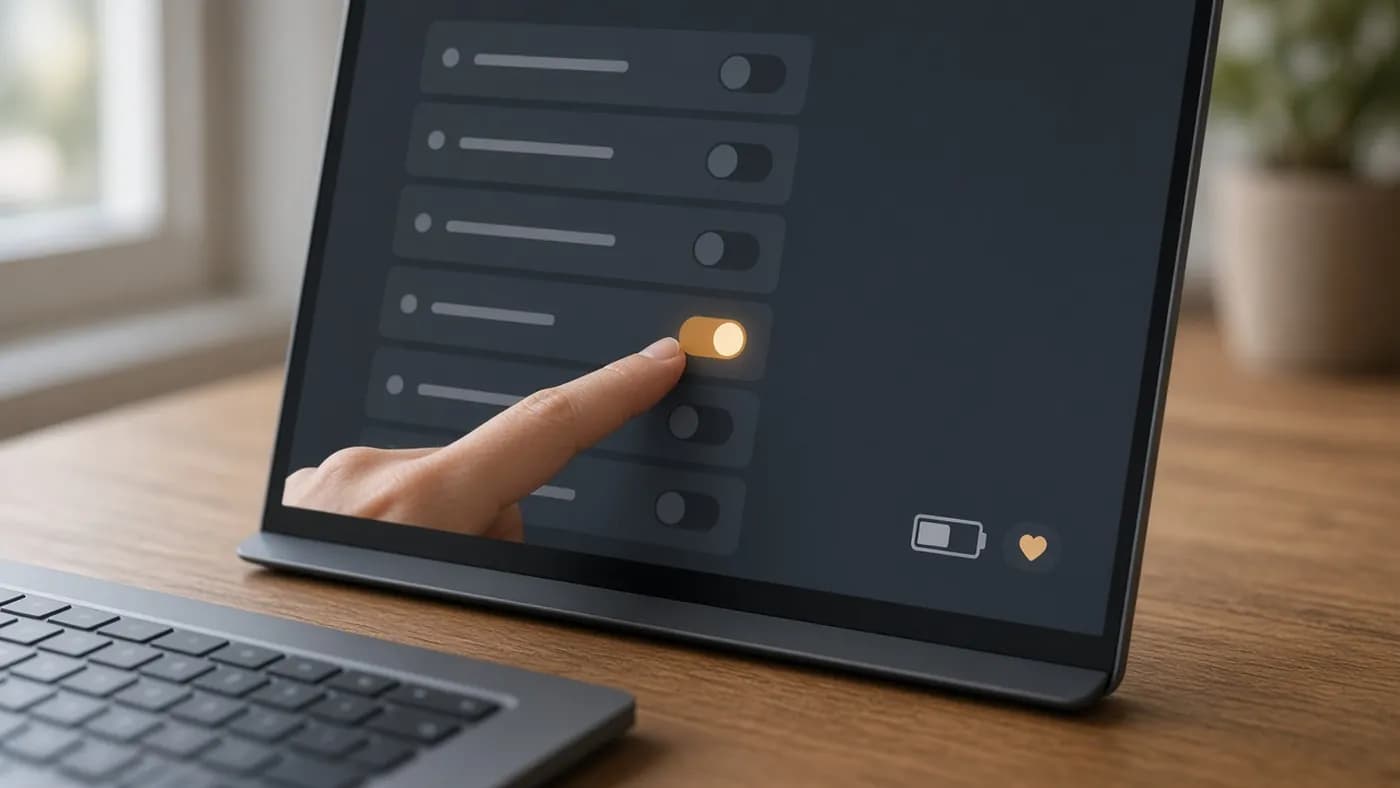
- Open Settings > System > Power & battery.
- Under Power Mode, choose Best Power Efficiency for lighter workloads. It limits background activity and runs cooler.
- Open Energy saver (on Windows 11 version 24H2 and later; older builds call it Battery saver). You can turn it on now, have it start automatically at a chosen battery level, or switch on Always use energy saver.
- Open Battery usage to see which apps drain the most power over the last 24 hours or 7 days, including background use.
- Check Energy recommendations for quick fixes such as shorter screen and sleep timeouts.
If your laptop maker supports it, you may also see Microsoft's Smart charging indicator. A small heart on the battery icon in the taskbar and in Power & battery means charging is intentionally being held below 100 percent. Hovering over the icon may show "Fully Smart charged." That's normal behavior, not a fault.
Step 3: Set a charge limit with your manufacturer's tool
This is where the real charge limit lives on Windows laptops. Names and menus vary by model and by app version, so treat the table as a starting point and check your model's support page if a setting is missing.
| Brand | Where to find it | Typical options | Watch out for |
|---|---|---|---|
| Lenovo (IdeaPad, Yoga, Legion) | Lenovo Vantage > Device > My Device Settings > Battery (or Power) | Conservation Mode; fixed around 55–60% on many IdeaPads, 75–80% on some Legion models | Custom thresholds are generally ThinkPad-only; some Arm-based models lack the option |
| Lenovo (ThinkPad) | Commercial Vantage > Device > Power | Smart Charge or a custom Battery Charge Threshold with start and stop levels | Settings may also sit in the BIOS |
| Dell | Dell Power Manager or Dell Command Power Manager; also BIOS battery configuration | Standard, ExpressCharge, Primarily AC, Adaptive, Custom | Newer Dell Optimizer versions use automatic Dynamic Charge Policy and hide manual thresholds |
| Alienware | BIOS Advanced menu (press F2 at boot) | Primarily AC Use, Adaptive, Custom start and stop | Alienware Command Center does not offer a charge limit on many models |
| HP (business) | BIOS (F10) > Power Management > Battery Health Manager | Maximize My Battery Health (about 80%), Let HP Manage My Battery Health | Windows may still show 100%, meaning 100% of the new ceiling |
| HP (consumer, OMEN) | Adaptive Battery Optimizer, on by default on many models | Automatic protection based on temperature and usage | No fixed percentage on most models |
| ASUS | MyASUS > Device Settings > Battery Care Mode | Full Capacity, Balanced (80%), Maximum Lifespan (60%); newer models use adaptive learning plus Instant Full-Charge | The limit can reset to 100% briefly during restarts until Windows loads |
| Microsoft Surface | Surface app > Battery & charging > Charging mode | Adaptive, Limit to 80%, Charge to 100% | UEFI Battery Limit caps at 50% and is meant for always-plugged kiosk use |
Lenovo
Open Lenovo Vantage, go to Device > My Device Settings > Battery, and toggle on Conservation Mode. On many consumer Lenovo laptops the threshold is fixed and cannot be changed. If you own a ThinkPad, Commercial Vantage lets you set custom start and stop percentages instead.
Dell and Alienware
In Dell Power Manager, open Battery Information, then Settings, and choose Primarily AC if the laptop rarely leaves your desk, or Custom to pick your own start and stop points. Dell's current recommendation for most users is Adaptive, which learns your routine. On recent Alienware models, set the same modes in the BIOS instead, since Command Center does not include them.
If you set a limit while the battery is already at 100 percent, nothing seems to happen. Unplug and let the charge drop below your stop point, then plug back in, and the limit takes effect.
HP
Business models keep the control in the BIOS. Restart, press F10, find Battery Health Manager, and choose Maximize My Battery Health. Consumer and gaming models rely on Adaptive Battery Optimizer, which switches on protective measures automatically when it detects heat or long periods plugged in.
ASUS
Open MyASUS, go to Device Settings, and find Battery Care Mode (older models call it Battery Health Charging). Choose Balanced Mode for 80 percent or Maximum Lifespan Mode for 60 percent. On 2026 models, the mode adapts to your habits, and Instant Full-Charge Mode gives you a one-time full charge before switching back after 24 hours.
Microsoft Surface
Open the Surface app, select Battery & charging, and under Charging mode choose Limit to 80%. Pick Charge to 100% the night before a trip. Not every Surface supports the manual option, and Snapdragon models needed a firmware update to get it, so install the latest updates first.
Step 4: Check battery health and set a limit on a Mac
macOS has the most polished tools of any platform. Everything lives in one settings pane, and on Apple silicon Macs you can now set a hard charge limit without third-party apps.
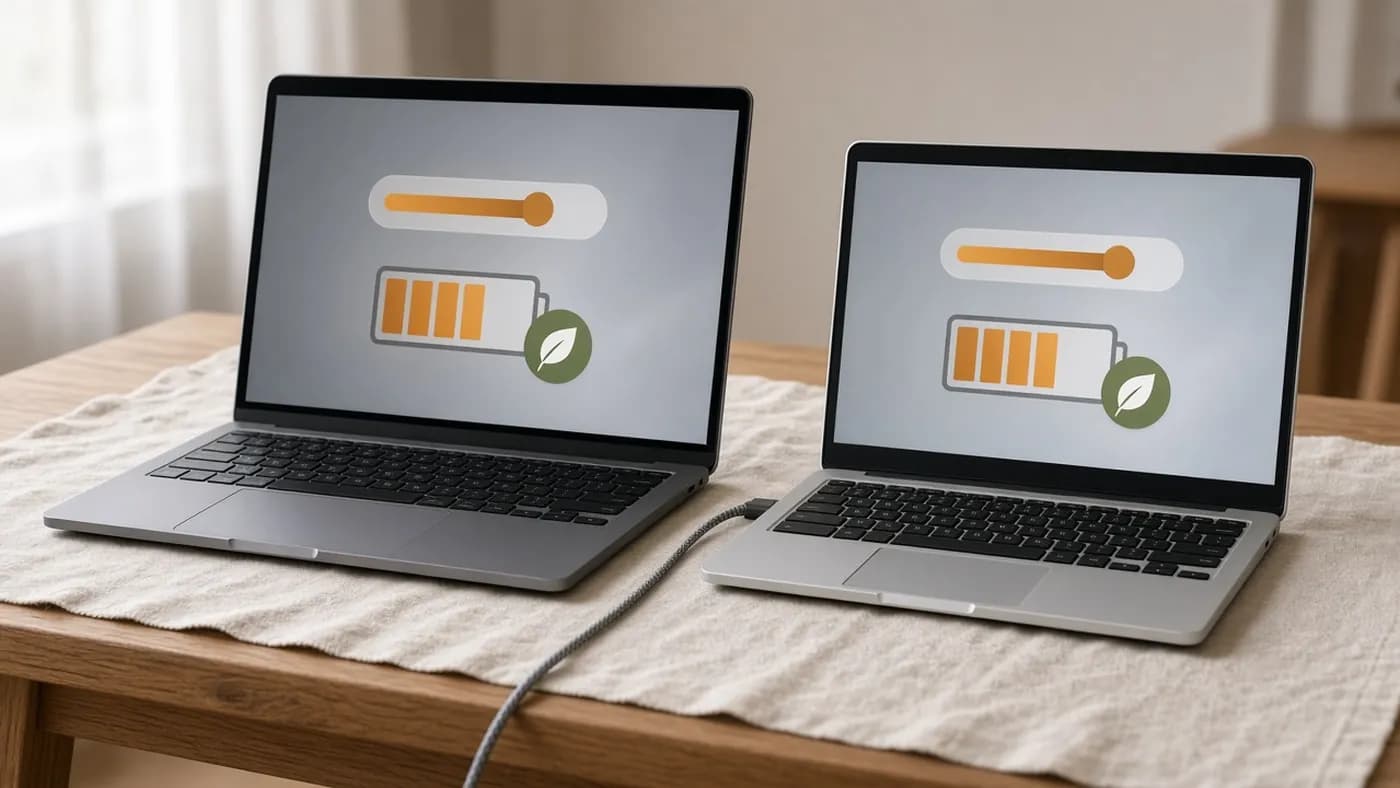
- Choose Apple menu > System Settings, then click Battery in the sidebar.
- Click the info button next to Battery Health to see Battery Condition (Normal or Service Recommended) and Maximum Capacity, which compares today's capacity with when it was new.
- Click the info button next to Charging.
- Leave Optimized Battery Charging on. It learns your routine and delays charging past 80 percent when it expects you to stay plugged in, showing "Charging On Hold" in the battery menu.
- On macOS Tahoe 26.4 or later with Apple silicon, set Charge Limit anywhere from 80 to 100 percent, then click Done.
When you need a full battery, click the battery icon in the menu bar and choose Charge to Full Now. The Charge Limit is enforced by macOS, so a Mac that is fully shut down while plugged in may charge to 100 percent. If that bothers you, let it sleep instead of shutting it down.
To see the cycle count, hold the Option key, open the Apple menu, choose System Information, and select Power. Apple publishes cycle limits for each Mac model on its support site.
Step 5: Turn on adaptive charging on a Chromebook
Most recent Chromebooks include machine-learning charging similar to the Mac's. Menu names have shifted between ChromeOS versions, so look for either wording.
- Select the time and battery area at the bottom right, then open Settings.
- Go to Device > Power.
- Find Adaptive charging, or on newer versions Optimized charging.
- Choose Adaptive charging to hold the battery around 80 percent until shortly before you usually unplug, or Charge limit to cap it at 80 percent all the time.
When adaptive charging is holding the battery, a notification appears with a Fully charge now button. On school or work Chromebooks, an administrator policy may control these settings. For wear details such as cycle count, open the Diagnostics app from the launcher.
Step 6: Manage heat and storage
Heat accelerates battery aging whether or not you use a charge limit. A few habits go a long way.
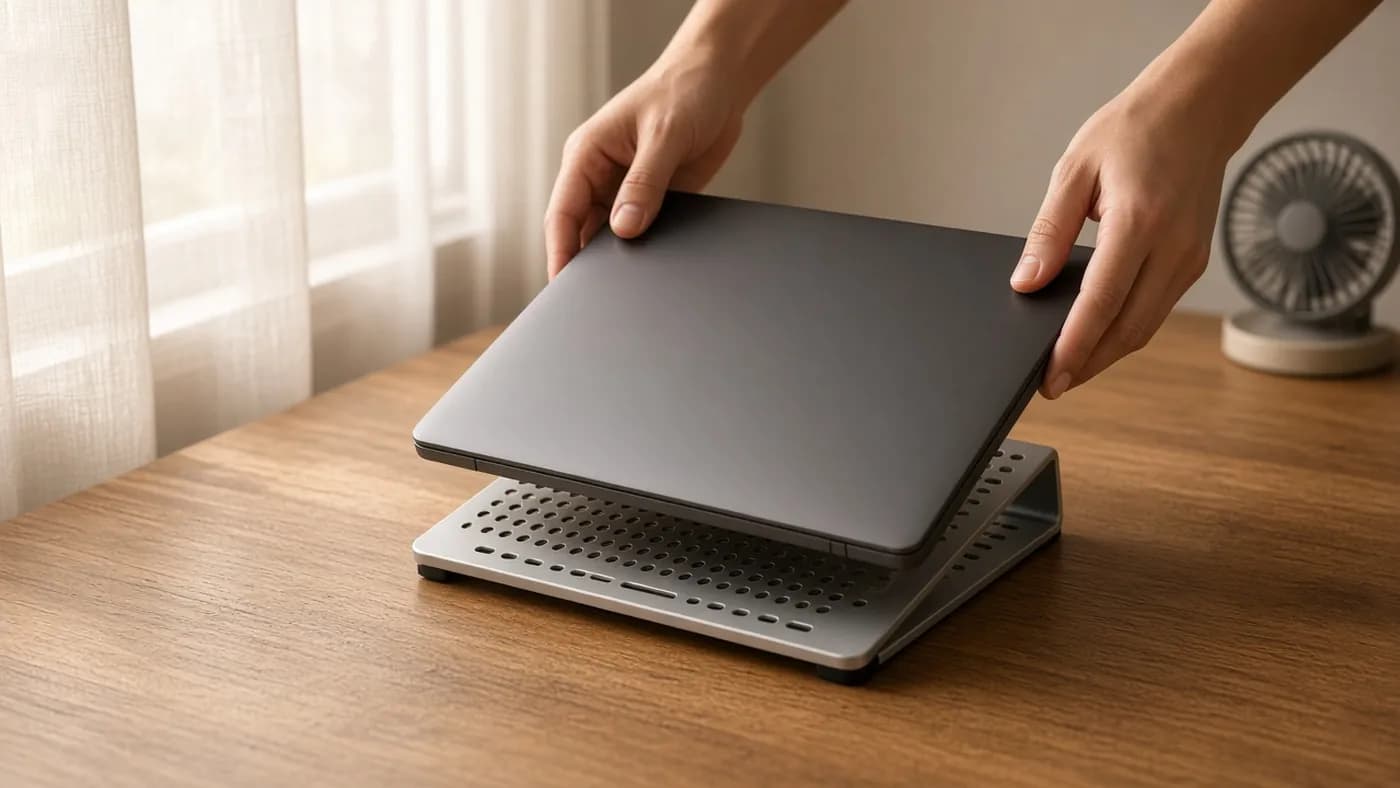
- Use the laptop on hard, flat surfaces. Beds and couches block the intake vents.
- Keep it out of hot cars and direct sun. Apple, for example, recommends ambient temperatures between 50 and 95 degrees Fahrenheit (10 to 35 degrees Celsius) for its notebooks.
- A ventilated stand improves airflow during long gaming or video-export sessions.
- Clean dust from vents periodically, following your manufacturer's guidance.
- For long-term storage, leave the battery at roughly half charge, power the laptop off, and store it somewhere cool. Top it back up to around half every few months.
- Use the charger that came with the laptop, or a quality replacement rated for the same wattage.
Fast-charge modes are convenient but add heat. If a laptop offers both standard and express charging, use the standard mode day to day and save express charging for when you're in a hurry.
Step 7: Know when to replace the battery
Every battery eventually wears out, and a charge limit only slows the process. These are the signs it is time.
- Health falls to around 80 percent or below. Most people start noticing shorter runtime at this point. Dell's own guidance says a battery below 40 percent of design capacity is significantly degraded and should be replaced.
- Your operating system warns you. macOS shows "Service Recommended," and many Windows manufacturer apps show a battery health alert.
- Runtime no longer covers your day, even after tuning power settings.
- The laptop shuts down suddenly at a reported 20 or 30 percent.
- The case bulges, the trackpad lifts, or the keyboard deck warps. A swollen battery is a safety issue. Stop using the laptop, unplug it, and get it serviced promptly.
Check whether your battery is still under warranty before paying for a replacement. Buy genuine parts from the manufacturer or an authorized repair shop, because cheap no-name cells are a common source of problems.
FAQ
Is it bad to leave my laptop plugged in all the time?
It won't damage the laptop, since modern charging circuits stop at full. But holding the battery at 100 percent in a warm laptop speeds up wear. Turning on a charge limit or adaptive charging removes most of that concern.
Should I use an 80 percent or a 60 percent limit?
Use 80 percent if you unplug regularly and want some runtime in reserve. Use 60 percent, where available, if the laptop almost never leaves the desk. You can switch back to a full charge before a trip on most tools.
Why does Windows still show 100 percent when HP's battery setting is on?
HP's Maximize My Battery Health mode lowers the effective ceiling, and Windows reports 100 percent of that new ceiling. The battery is still being held at a lower real charge, so your runtime per charge will be shorter.
Do third-party charge-limit apps work?
On Windows, apps can only control charging if the laptop's firmware supports it, so the manufacturer's tool is the safer choice. On Macs, built-in Charge Limit now covers most needs, and some third-party utilities have needed updates after macOS changed its charging interfaces.
How often should I check battery health?
Every three to six months is plenty. Save each Windows battery report or note the Mac's Maximum Capacity so you can spot a sudden drop.
The bottom line
Checking battery wear takes a couple of minutes, and setting a charge limit takes even less. Run the battery report or open your Mac or Chromebook battery settings, turn on the charge-limit feature your laptop supports, and keep the machine cool. Your laptop will hold a useful charge for longer before it needs a new battery.
Join the conversation