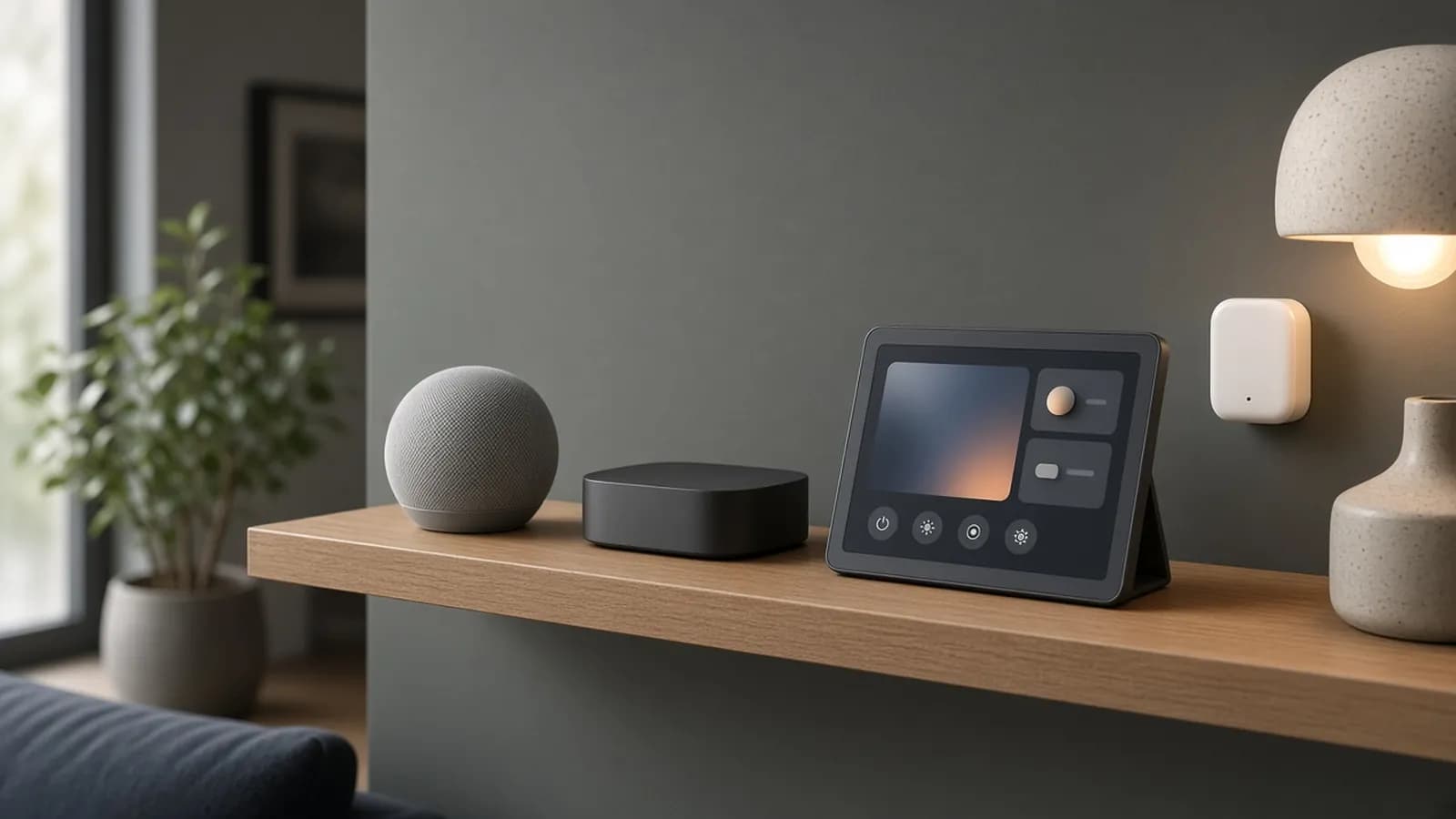
Matter was supposed to end the era of "works with this app, but not that one." In 2026 it mostly delivers on that promise, as long as you set it up in the right order. Most frustration comes from skipping a step, not from a broken standard.
This guide walks through building a Matter home from scratch. We cover what Matter and Thread actually do, how to pick a controller, how to pair and share devices, and how to recover when pairing fails.
What Matter and Thread actually are
Matter is an application-layer standard from the Connectivity Standards Alliance (CSA). It defines how a light, lock or sensor describes itself and accepts commands, so any certified controller can operate it locally without a cloud-to-cloud integration. Apple, Google, Amazon and Samsung all ship Matter controllers.
Matter runs over three kinds of network: Wi-Fi, Ethernet and Thread. Bluetooth Low Energy is used only during setup, to hand the device its network credentials.
Thread is a low-power mesh network, similar in spirit to Zigbee but IP-based. Mains-powered Thread devices relay traffic for their neighbors, so the network gets stronger as you add plugs and bulbs. Battery devices such as door sensors and locks favor Thread because it barely sips power.
To reach a Thread device from your phone or Wi-Fi network, you need a Thread border router. That job is usually done by a smart speaker, streaming box, display or hub you may already own.
Where the standard stands in August 2026
The current specification is Matter 1.6, released by the CSA on June 17, 2026. It is a refinement release rather than a category expansion. It adds NFC-based commissioning, Joint Fabric for coordinating device management across ecosystems, and smarter thermostat behavior.
The bigger practical jump was Matter 1.5 in November 2025, which added cameras, video doorbells, closures such as garage doors and gates, soil sensors and irrigation controllers. The CSA itself notes that spec features reach retail products and ecosystem apps on each company's own timeline. Treat anything from 1.5 or 1.6 as "check before you buy."
Step 1: Choose your controller
Your controller, sometimes called a hub, is the always-on device that runs automations, provides remote access and usually doubles as a Thread border router. You can use more than one ecosystem, but pick a primary one first.
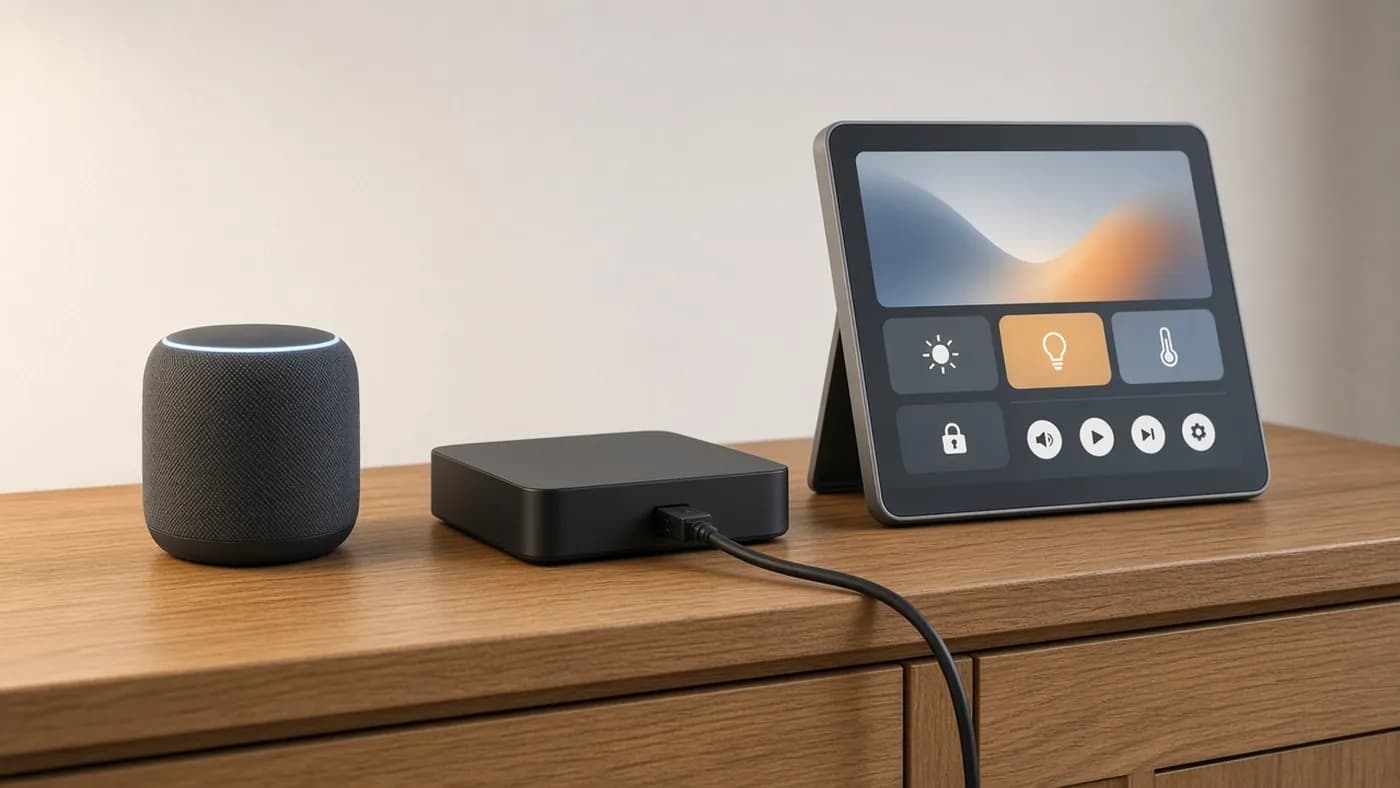
Here is how the main options compare right now.
| Ecosystem | Matter controllers | Thread border routers | Where to find the share code | Best for |
|---|---|---|---|---|
| Apple Home | HomePod, HomePod mini, Apple TV 4K | HomePod mini, HomePod (2nd gen), Apple TV 4K (2nd gen), Apple TV 4K Wi-Fi + Ethernet (3rd gen) | Accessory settings > Turn On Pairing Mode | iPhone households that want a polished, private app |
| Google Home | Nest speakers and displays, Google TV Streamer, Nest Wifi | Nest Hub (2nd gen), Nest Hub Max, Nest Wifi, Nest Wifi Pro, Google TV Streamer 4K | Device settings > Linked Matter apps & services | Android users and Nest owners |
| Amazon Alexa | Most recent Echo speakers and displays, Echo Hub, many eero routers | Echo (4th gen), Echo Hub, selected Echo Show and eero models | Device settings > Other Assistants and Apps > Add Another | Voice-first homes already built around Echo |
| Samsung SmartThings | SmartThings Station, Hub v3, compatible Samsung TVs and monitors | SmartThings hubs and many recent Samsung TVs | More (three dots) > Share with other services | Mixed-brand homes that want deep dashboards |
| Home Assistant | Any Home Assistant server with the Matter integration | Home Assistant Connect ZBT-2 or Yellow running OpenThread Border Router | Device page > Share device | Tinkerers who want fully local control and complex automations |
A few notes on the table. On Apple, only the Wi-Fi + Ethernet version of the third-generation Apple TV 4K includes a Thread radio. On Google, older Nest Mini and Nest Audio speakers can act as Matter controllers for Wi-Fi devices but are not Thread border routers.
Since iOS 18, you can pair Matter accessories directly to an iPhone without a home hub. Apple is clear about the trade-off: without a hub you lose remote control, automations and sharing. For a real smart home, plan on a hub.
Key takeaway: choose the ecosystem your household already talks to every day, and make sure at least one of your controllers is a Thread border router. Everything else can be layered on later with multi-admin.
Step 2: Prepare your network and phone
Most pairing failures are network problems in disguise. Spend five minutes here and you will save an hour later.
- Update the firmware on your hub or speaker and update the ecosystem app on your phone.
- Connect your phone to the same Wi-Fi network your hub uses. Avoid guest networks, which often block local device discovery.
- Turn on Bluetooth on your phone. Matter uses it for the first handshake with a new device.
- If your router has separate 2.4 GHz and 5 GHz names, join the 2.4 GHz network during setup for Wi-Fi Matter devices, since many of them only support that band.
- Temporarily disable VPN apps on your phone. They can hide local network traffic from the setup flow.
- On iPhone, if you set up through a third-party app, make sure it has Local Network access under Settings > Privacy & Security > Local Network.
Step 3: Add your first Matter device
Every Matter device ships with a setup QR code and an 11-digit numeric code. The code is often printed on the device, the box and the manual. Photograph it before you install anything, because a code on the back of a light switch is useless once it is in the wall.
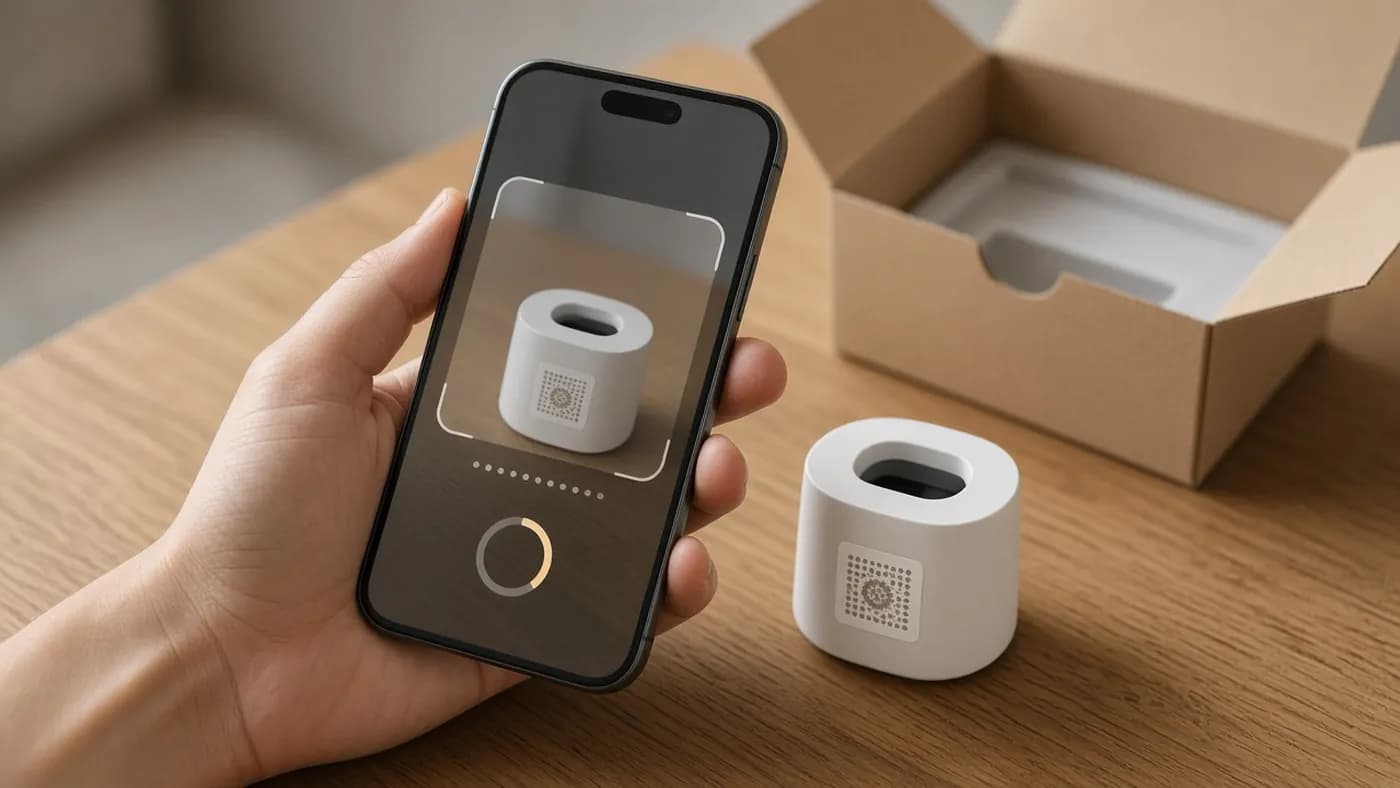
- Power on the device. Most new devices enter pairing mode automatically for a limited window, often around 15 minutes.
- Open your primary ecosystem app and start the add flow.
- Apple Home: tap the plus button, then Add Accessory.
- Google Home: go to Devices, tap Add, then choose Matter-enabled device.
- Alexa: go to Devices, tap the plus button, then Add Device, and pick Matter when asked how the device connects.
- SmartThings: tap the plus button, then Add device, then Partner devices, and choose Matter.
- Home Assistant: in the Companion app, go to Settings > Devices & services, tap Add device, then Add Matter device.
- Scan the QR code. If the camera will not read it, look for an option such as "More options," "Set up without QR code" or "Try numeric code instead" and type in the 11 digits.
- Keep your phone near the device while it joins. Wi-Fi devices will ask which network to use; Thread devices join your border router's mesh automatically.
- Name the device, assign it to a room and test it from the app before moving on.
Button labels shift slightly between app versions and between iPhone and Android. If you do not see the exact wording above, look for the add or plus control on the main Devices or Home screen.
Step 4: Share devices across ecosystems with multi-admin
Multi-admin is Matter's best feature. A single device can join several ecosystems at once, so your partner can use Siri while you use Google Assistant, all controlling the same bulb locally.
The key rule is that the original QR code only works for the first ecosystem. To add a second, the first ecosystem opens a temporary pairing window and gives you a fresh code.
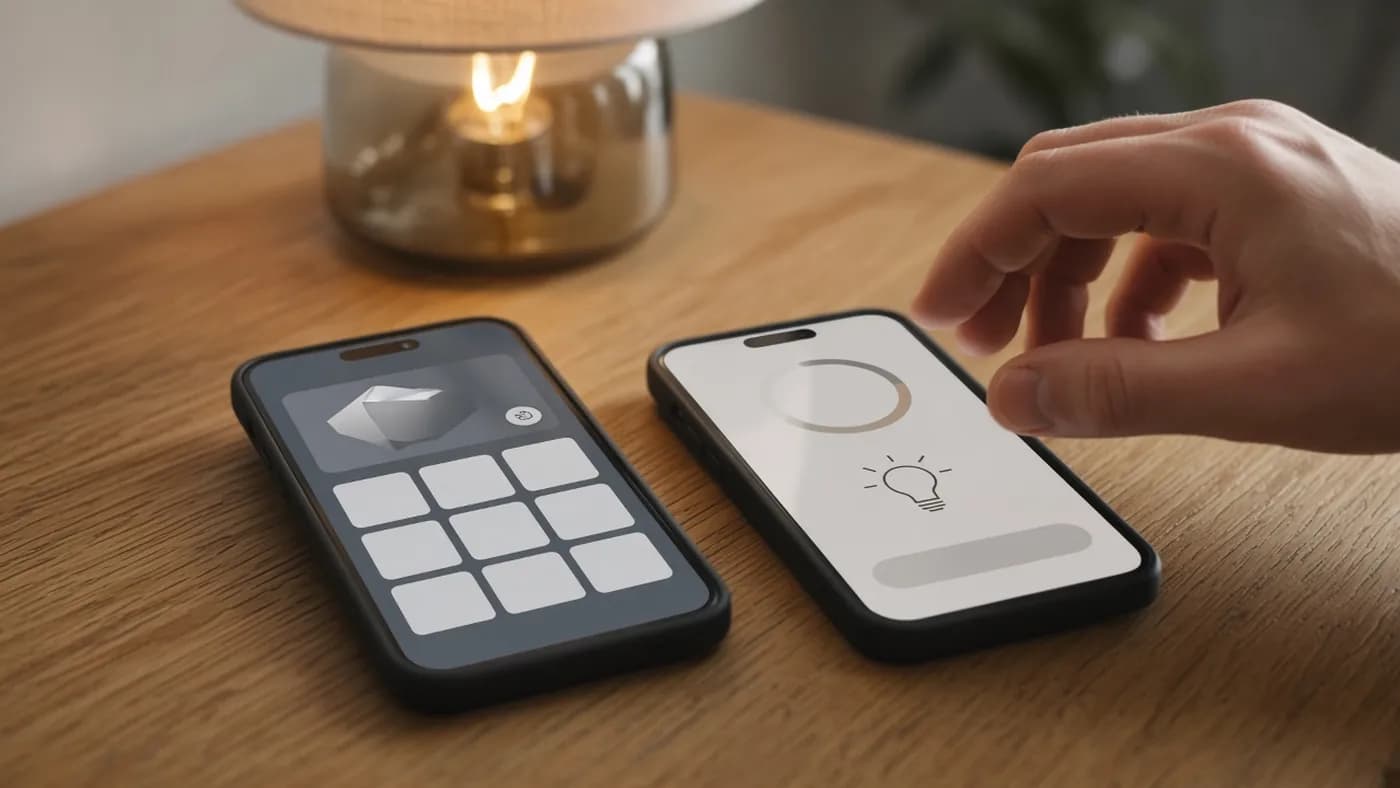
- In the ecosystem where the device already lives, open the device's settings.
- Apple Home: open the accessory, tap the settings gear, then Turn On Pairing Mode, then Copy Code.
- Google Home: touch and hold the device tile, open Settings, then Linked Matter apps & services, then Link apps & services. Pick the other app, or choose Use pairing code.
- Alexa: open the device, go to Settings, then Other Assistants and Apps, then Add Another, and copy the code.
- SmartThings: open the device, tap More (the three dots), choose Share with other services, then Share device.
- Open the second ecosystem's app and start adding a Matter device.
- When it asks for the QR code, choose the manual or numeric code option and paste the new code.
- Finish setup before the window closes. These sharing codes are typically valid for about 15 minutes.
You need a controller from each ecosystem you add, because each one runs its own automations and remote access. You do not need a separate Thread border router for each, since they can all reach Thread devices through the mesh you already have.
If "Turn On Pairing Mode" is missing in Apple Home, the accessory may have joined via HomeKit rather than Matter. It may also have been added to another controller first.
Step 5: Build a healthy Thread network
Thread networks are self-healing, but they still obey physics. A border router tucked inside a closed media cabinet makes a weak starting point for your mesh.
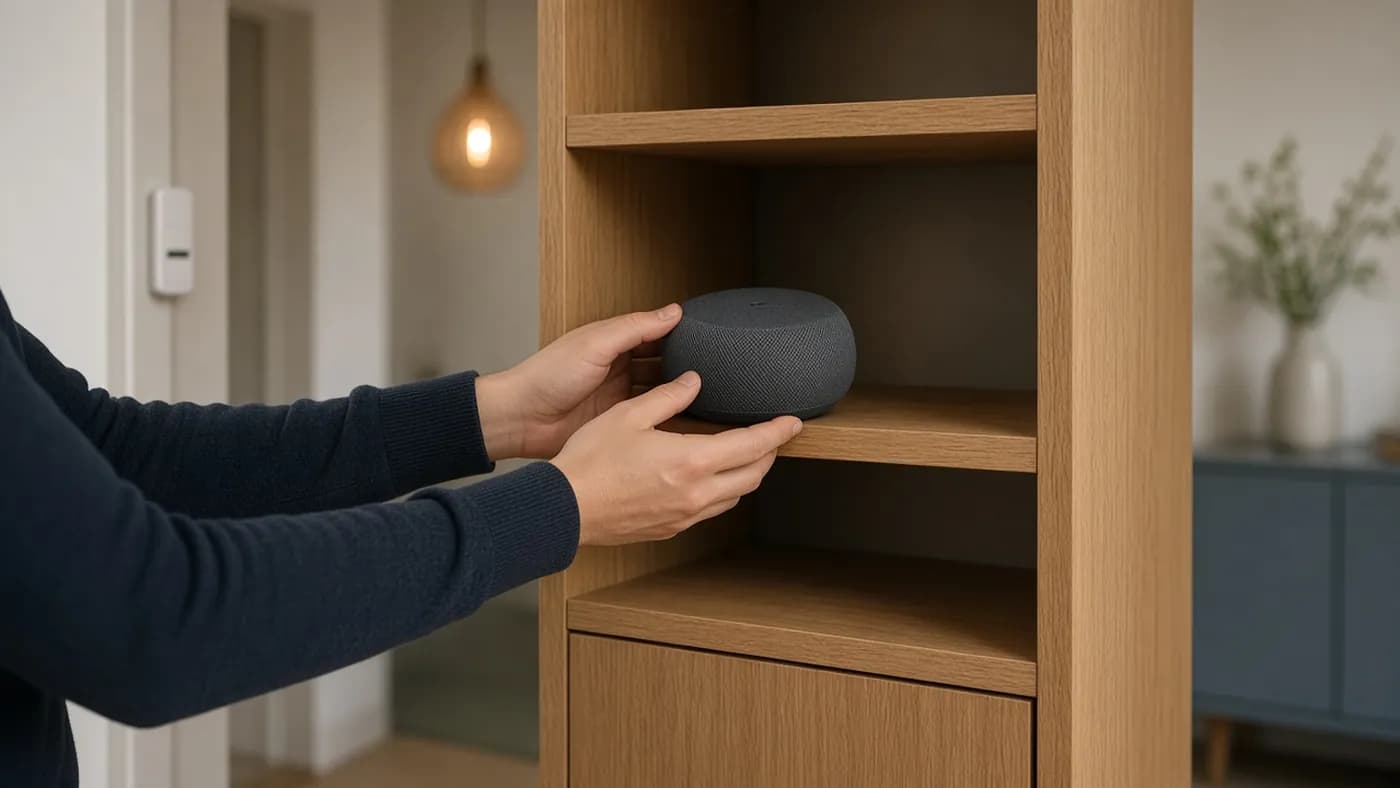
- Place at least one border router centrally and in the open, not behind a TV or inside metal furniture.
- Add mains-powered Thread devices such as plugs, switches and bulbs early. They act as routers and extend the mesh for battery devices.
- Pair battery devices, like contact sensors, last and near their final location.
- Keep firmware current on every border router, since Thread fixes arrive through hub updates.
The long-standing weak spot is fragmentation. Each brand's border router has tended to create its own Thread network instead of joining one shared mesh. Thread 1.4 fixes this with standardized credential sharing. Samsung added it to SmartThings hubs in October 2025, and IKEA's Dirigera already supports it.
Apple and Google began rolling Thread 1.4 onto the Apple TV and Google TV Streamer in June 2026, though the consumer-facing sharing controls were still incomplete at the time. Amazon has said it plans to bring Thread 1.4 to compatible devices before the end of 2026.
Home Assistant users have their own path. In Settings > Devices & services, open the Connect ZBT-2, choose Use as Thread adapter, and let it install the OpenThread Border Router app. Then open the Thread integration, make that network the preferred one and sync its credentials to your phone before pairing. The ZBT-2 has to be dedicated to Thread; it cannot run Zigbee at the same time.
Step 6: Troubleshoot pairing failures
When a device refuses to join, work through this list in order. The early steps fix the majority of problems.
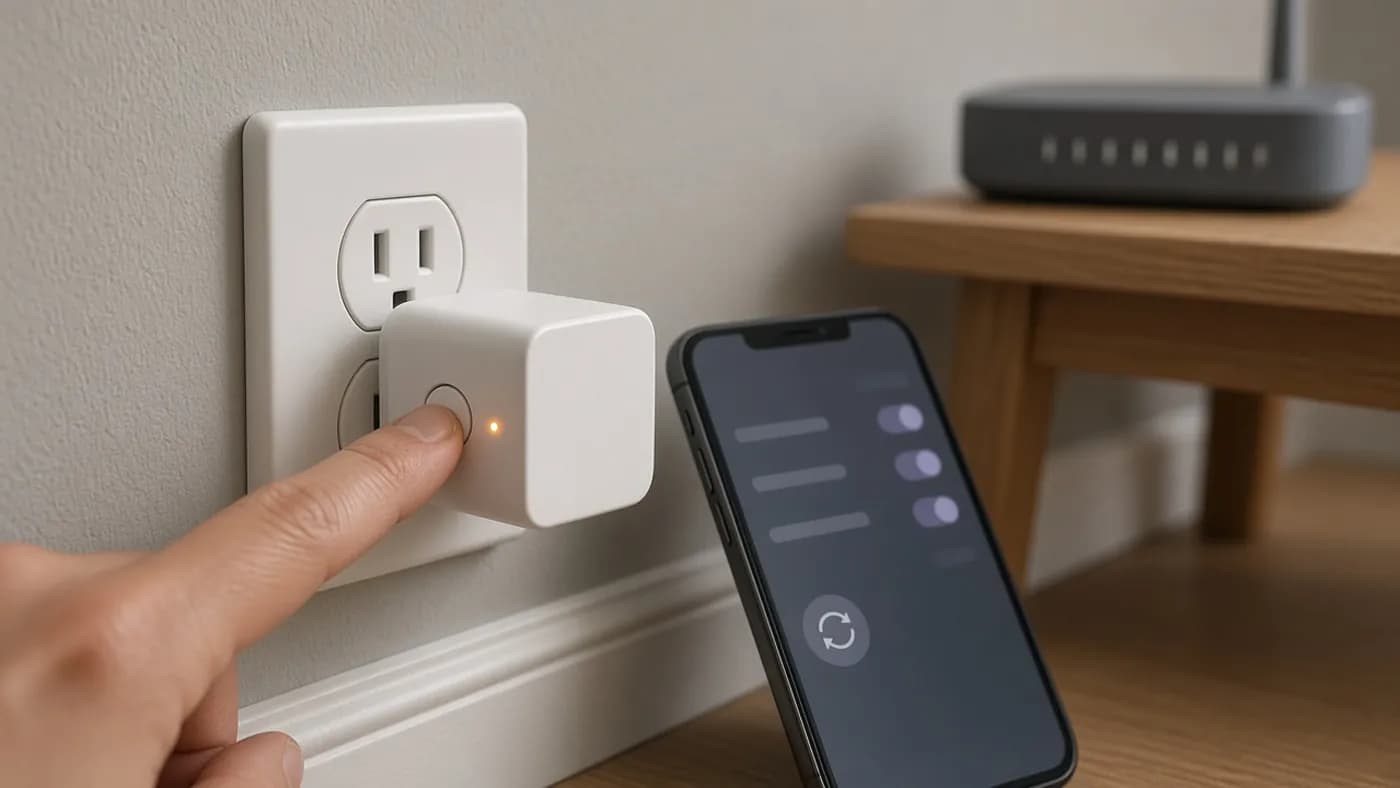
- Check the pairing window. If the device has been powered on for a while, its setup window may have closed. Power-cycle it and try again.
- Confirm the code. A box code that was already used by another ecosystem will fail. Generate a sharing code from the first ecosystem instead.
- Get closer. Bluetooth is used for the initial handshake, so stand within a few feet of the device.
- Check Wi-Fi band and network. Make sure your phone and hub are on the same main network, and use 2.4 GHz for Wi-Fi Matter devices that need it.
- Look for a missing border router. A "Thread border router required" or "Needs Thread network" message means none of your controllers can reach the Thread mesh. Add or relocate one.
- Sync Thread credentials. In mixed setups, especially with Home Assistant, the phone may not know the network the device should join. Re-sync credentials from the border router's app.
- Remove stale connections. Each Matter device supports several ecosystems at once, but the slots are finite. Remove ecosystems you no longer use from the device's linked-apps screen.
- Factory reset as a last resort. Reset the device using the manufacturer's button sequence, remove it from every app, then start again with the original QR code.
Which device categories Matter supports
Categories arrived in waves, and your ecosystem may support fewer device types than the spec does. This is the practical map as of Matter 1.6.
| Matter version | Notable device categories added |
|---|---|
| 1.0 (2022) | Lights, plugs, switches, locks, thermostats, blinds and shades, contact and motion sensors, bridges, TVs and media players |
| 1.2 (2023) | Robot vacuums, refrigerators, room air conditioners, dishwashers, washers, smoke and CO alarms, air purifiers, air quality sensors, fans |
| 1.3 (2024) | Energy reporting, EV chargers, ovens, cooktops, microwave ovens, dryers, water valves |
| 1.4 (2024) | Water heaters, heat pumps, solar inverters, home batteries, routers and access points |
| 1.5 (2025) | Cameras, video doorbells, chimes, intercoms, closures, soil sensors, irrigation |
| 1.6 (2026) | No new categories; setup, multi-ecosystem and thermostat improvements |
Lighting, plugs, sensors, locks, thermostats and shades are the safest bets in every ecosystem. Appliances, energy devices and especially cameras vary widely, so confirm support in your ecosystem's app or help pages before you buy.
FAQ
Do I need a hub to use Matter?
Technically no, since an iPhone or Android phone can pair some devices directly. In practice, yes. A hub provides automations, remote access, sharing and, for Thread devices, the border router that connects them to your network.
Can I use Apple Home and Google Home at the same time?
Yes. Add the device to one ecosystem, then use multi-admin to generate a sharing code and add it to the other. Both can control the device locally, and changes made in one appear in the other.
Are my old Zigbee or Z-Wave devices wasted?
Not necessarily. Several hubs, including SmartThings, Home Assistant and some brand bridges like Philips Hue, can expose older devices to Matter ecosystems as bridged devices. Check whether your specific hub supports Matter bridging.
Do Matter cameras work yet?
Cameras entered the spec with Matter 1.5, and some manufacturers have announced models or firmware updates. Ecosystem support is still arriving unevenly, so verify that your controller lists Matter cameras as supported before buying one for that reason.
What does the Matter logo on a box guarantee?
It means the product is certified to work with Matter controllers. It does not guarantee every feature appears in every app, so check that your ecosystem supports that specific device category.
Conclusion
A reliable Matter home comes down to order of operations. Pick a primary ecosystem, make sure you own a well-placed Thread border router, pair each device once with its original code and share it everywhere else with multi-admin. Keep your hubs updated as Thread 1.4 and Matter 1.6 features roll out, and the "which app does this work with" question fades into the background.
Join the conversation