A slow PC rarely has a single cause. It is usually a pile-up: a dozen apps launching at sign-in, a nearly full drive, an outdated driver, and maybe an ageing hard disk underneath it all. The good news is that Windows 11 has built-in tools for almost every one of those problems.
This guide walks through ten fixes in roughly the order we would try them, starting with free five-minute changes and ending with hardware upgrades and a full reset. The menu paths below are for Windows 11 version 25H2, the current mainstream release. To check your version, press Windows + R, type winver, and press Enter.
Before you start: find out what is actually slow
Open Task Manager with Ctrl + Shift + Esc. On the Processes page, click the CPU, Memory, and Disk column headers to sort by each one. If a single app sits at the top using most of your CPU or memory, you may have found your culprit already.
Then switch to the Performance page. It shows whether your drive is an SSD or an HDD, how much memory is in use, and whether your disk is pinned at 100% activity. Keep those numbers in mind, because they tell you which of the fixes below will matter most.
Quick reference: fixes by time and effort
| Fix | Time needed | Effort | Cost | Best for |
|---|---|---|---|---|
| Trim startup apps | 5 minutes | Easy | Free | Slow boot and sign-in |
| Windows Update and drivers | 15–45 minutes | Easy | Free | Glitches, crashes, stutter |
| Storage Sense and cleanup | 10 minutes | Easy | Free | Nearly full drives |
| Change power mode | 1 minute | Easy | Free | Laptops that feel sluggish |
| Reduce visual effects | 2 minutes | Easy | Free | Older or low-end PCs |
| Limit background apps | 10 minutes | Easy | Free | Constant fan noise, battery drain |
| Malware scan | 15 minutes to 2 hours | Easy | Free | Sudden, unexplained slowdowns |
| Check SSD health or swap HDD for SSD | 10 minutes to 2 hours | Moderate to hard | Free to paid | Very slow boot and file access |
| Add RAM | 30 minutes | Moderate | Paid | Heavy multitasking |
| Reset this PC | 1–3 hours | Moderate | Free | When nothing else works |
1. Trim your startup apps
Every app that launches when you sign in competes for CPU time and disk access in the first minutes after boot. Chat clients, game launchers, cloud sync tools, and printer utilities are the usual offenders.
- Open Settings and go to Apps > Startup.
- Sort the list by Startup impact.
- Turn off the toggle for anything you do not need the moment you sign in.
- Restart your PC to feel the difference.
Task Manager offers the same list with more detail. Open it, select Startup apps in the left-hand menu, right-click an app, and choose Disable. Microsoft classifies an app as High impact if it uses more than a second of CPU time or more than 3MB of disk activity at startup, so start with those.
Leave your antivirus and anything from your PC maker that controls hardware features, such as touchpad or audio utilities, switched on. Disabling a startup entry does not uninstall the app; you can still open it whenever you like.
2. Install Windows updates and the right drivers
Updates fix bugs that can cause stutter, crashes, and runaway background processes. Go to Settings > Windows Update and select Check for updates, then install anything waiting and restart.
Drivers are the other half. Windows installs recommended drivers automatically, but optional driver updates are not installed unless you choose them.
- Go to Settings > Windows Update > Advanced options.
- Under Additional options, select Optional updates.
- Expand Driver updates and pick only drivers for hardware you are having trouble with.
- Select Download and install, then restart even if you are not prompted.
For graphics cards in particular, the newest driver usually comes from the GPU maker's own app or website rather than Windows Update. If your PC is a laptop, your manufacturer's support utility is often the safest source for chipset and firmware updates.
3. Free up storage with Storage Sense and Cleanup recommendations
Windows needs free space for updates, temporary files, and virtual memory. When a drive is nearly full, everything from app launches to updates can slow down.
- Go to Settings > System > Storage.
- Under Storage management, select Cleanup recommendations.
- Review each category: Temporary files, Large or unused files, Files synced to the cloud, and Unused apps.
- Tick what you are happy to remove and select Clean up for each section.
Temporary files can include leftovers from a previous Windows installation after a big update, which can take up a lot of space. Only remove those once you are sure you will not want to roll back.
To stop the problem from coming back, turn on Storage Sense from the same Storage page. You can set it to run on a schedule and choose how long files can sit in the Recycle Bin and Downloads folder before they are removed. Be careful with the Downloads option if you use that folder as long-term storage.
4. Switch your power mode
Laptops in particular often default to a balanced setting that holds back performance to save battery. Changing it takes seconds.
Go to Settings > System > Power & battery and find Power mode. Choose Best performance for when the laptop is plugged in, and keep Balanced or Best power efficiency for battery use if runtime matters more to you. On many PCs you can set separate options for Plugged in and On battery.
If you cannot change the power mode, a custom power plan may be active. Open Control Panel > System and Security > Power Options and select Balanced, then try again. Also make sure Energy saver is off. Expect more fan noise and heat in Best performance mode; that is the trade-off.
5. Turn down visual effects
Animations and translucent backgrounds look great, but they cost graphics and CPU time on older machines. Turning them off makes menus and windows appear instantly rather than sliding into place.
- Go to Settings > Accessibility > Visual effects.
- Turn off Animation effects.
- Turn off Transparency effects.
For finer control, press Windows + R, type sysdm.cpl, and press Enter. Go to Advanced, then select Settings under Performance. On the Visual Effects tab, choose Adjust for best performance, or pick Custom and keep Smooth edges of screen fonts ticked so text stays readable. Some big updates can switch these options back on, so recheck them if the sluggishness returns.
6. Rein in background apps
Some apps keep running after you close them to sync, fetch notifications, or check for updates. On a PC with limited memory, that adds up.
For apps from the Microsoft Store and other packaged apps:
- Go to Settings > Apps > Installed apps.
- Select the three-dot menu next to an app and choose Advanced options.
- Under Background app permissions, set Let this app run in background to Never, or leave it on Power optimized.
If you do not see Advanced options, the app is a traditional desktop program and manages its own behaviour. Look in its settings for options such as "run in the background," "minimise to tray," or "launch at startup," and switch them off. Checking the system tray, the icons near the clock, is a quick way to spot what is still running.
7. Scan for malware with Windows Security
A sudden slowdown with no obvious cause, pop-ups, or a browser homepage you did not set can all point to malware. Windows 11 includes Microsoft Defender at no extra cost.
- Open the Windows Security app and select Virus & threat protection.
- Select Scan options.
- Choose Full scan and select Scan now. It checks every file and can take an hour or more.
- If something keeps coming back, return to Scan options and run a Microsoft Defender Offline scan, which restarts your PC and scans before Windows loads.
Save your work before an offline scan, because the PC will restart. Afterwards, check Protection history in Windows Security to see what was found and removed. Avoid "PC booster" or "registry cleaner" apps you did not seek out; they are a common source of the very problems they claim to fix.
8. Check your SSD health, or replace that hard drive
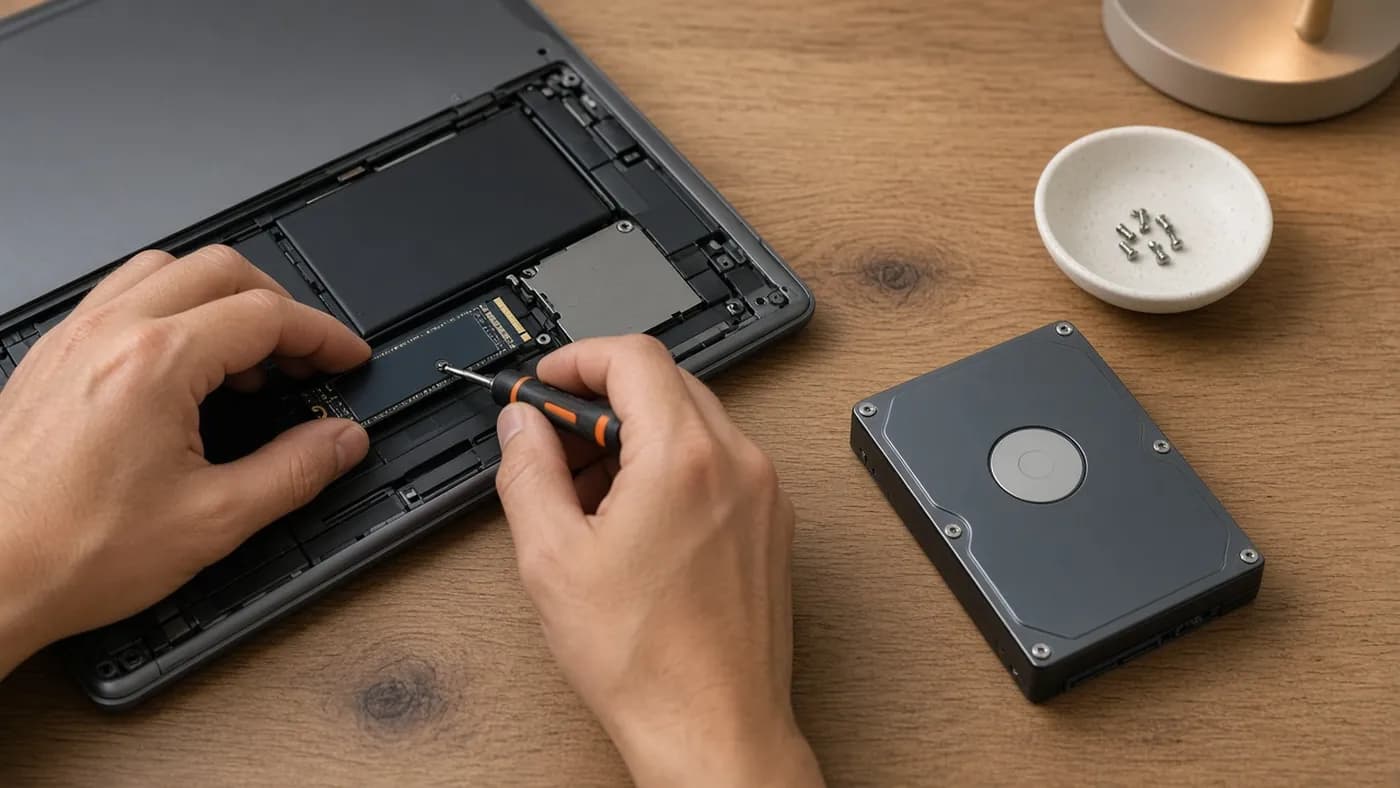
If Task Manager shows your system drive as an HDD, this is the single upgrade most likely to transform an older PC. Spinning hard drives are dramatically slower than SSDs at the random reads Windows relies on during boot and app launches.
If you already have an SSD, check that it is healthy:
- Go to Settings > System > Storage.
- Select Advanced storage settings, then Disks & volumes.
- Choose your physical drive and select Properties.
- Look under Drive health for estimated remaining life, available spare, and temperature.
This panel only reports data for NVMe SSDs. If you have a SATA SSD or a hard drive and the section is blank, that does not mean the drive is healthy; use your drive maker's utility instead. Any warning such as "reliability is degraded" means you should back up immediately.
Upgrading from an HDD usually means cloning your existing drive to a new SSD with the drive maker's migration software, or doing a clean Windows install. Desktops and many older laptops take a 2.5-inch SATA SSD; newer ones use M.2 slots. Check your model's manual before buying, and note that SSD prices have climbed this year as memory makers prioritise AI data centres, so it pays to shop around.
9. Check whether you need more RAM
Open Task Manager, go to Performance, and select Memory. If "In use" sits close to your total while you are doing normal work, Windows is swapping data to disk and everything slows down.
For everyday browsing and office work, 16GB is a comfortable amount for Windows 11 today; 8GB can work but leaves little headroom once a browser has a few dozen tabs open. The same Memory page shows how many slots are used, which tells you whether you can add a stick or need to replace existing ones.
Many thin laptops have memory soldered to the motherboard, so an upgrade is not possible. On desktops and laptops with free slots, match the memory type and speed listed in your manual. Like SSDs, RAM has become noticeably more expensive in 2026, so try the free fixes above first.
10. Reset this PC as a last resort
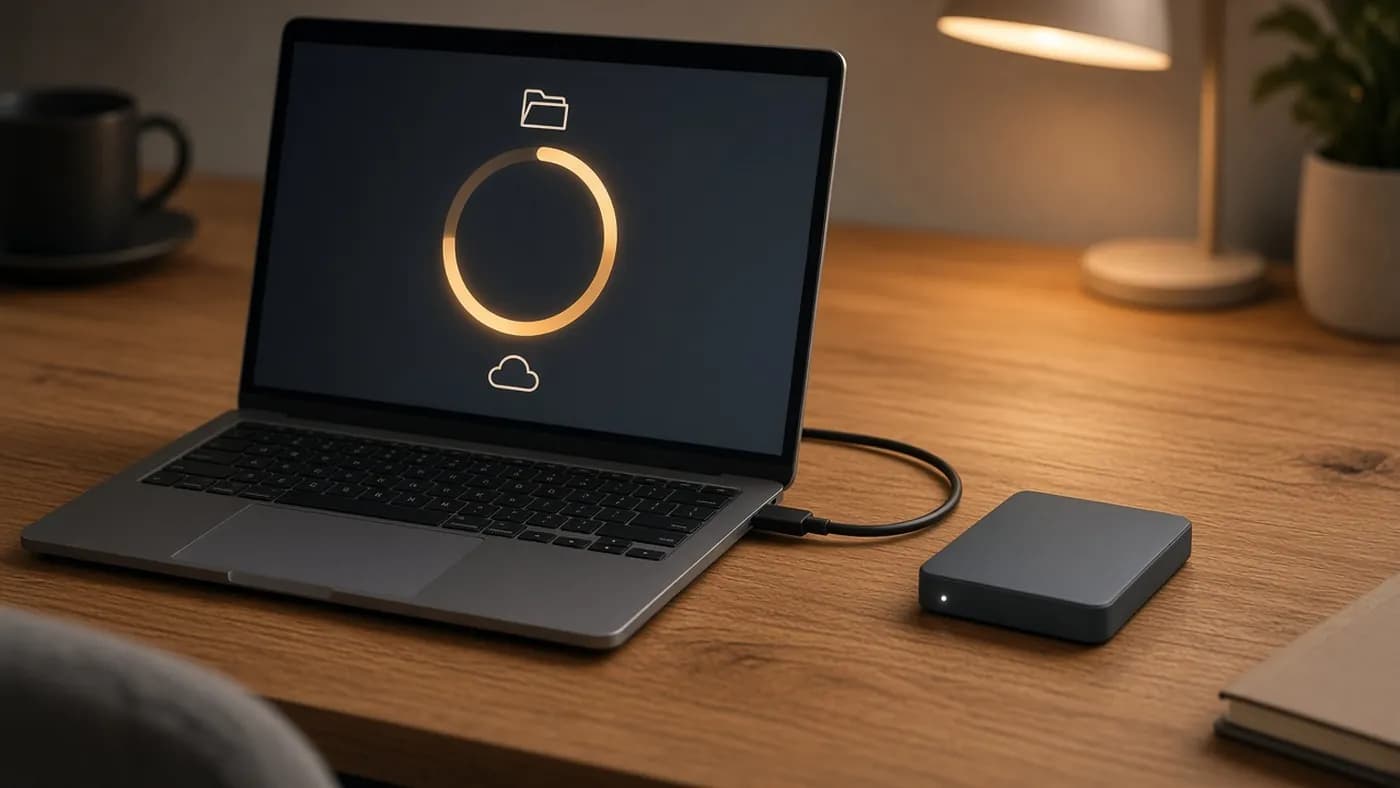
If your PC is still slow after all of the above, a reset gives you a fresh copy of Windows without needing a USB installer. Back up your files first, either to OneDrive or an external drive.
- Go to Settings > System > Recovery.
- Next to Reset this PC, select Reset PC.
- Choose Keep my files to keep your personal files, or Remove everything for a completely clean start.
- Choose Cloud download to fetch a fresh copy of Windows, or Local reinstall to use files already on your PC.
- Review the list of apps that will be removed, then confirm.
Keep my files still removes your installed apps and most settings, so make a list of what you will need to reinstall. Keep a laptop plugged in throughout and do not interrupt the process.
Key takeaway: Start with the free, five-minute fixes (startup apps, updates, storage cleanup, and power mode) before spending money. If your PC still boots from a spinning hard drive, an SSD upgrade will do more than every software tweak combined.
FAQ
Does Windows 11 25H2 run slower than older versions?
Not inherently. Version 25H2 shares its core with 24H2, so a slowdown after updating is more often down to a driver, a freshly re-enabled startup app, or background indexing that settles after a day or two. Check Optional updates for newer drivers and give it some time before rolling back.
Should I use a third-party PC cleaner or optimizer?
Generally, no. Windows 11's Storage Sense, Cleanup recommendations, Startup settings, and Windows Security cover what most of these tools do. Registry cleaners in particular offer little benefit and can cause problems if they remove the wrong entries.
Will Best performance power mode damage my laptop?
No. It tells Windows to favour speed over power savings, which means more heat, more fan noise, and shorter battery life, but the hardware still protects itself from overheating. Switch back to Balanced when you are on battery.
How much free space should I keep on my drive?
There is no official number, but leaving a healthy margin, roughly 10 to 15 percent of the drive or at least 20 to 30GB, gives Windows room for updates and temporary files. If you are constantly below that, Cleanup recommendations or moving large files to cloud storage will help.
The bottom line
Most slow Windows 11 PCs can be brought back to life with an afternoon of free changes: fewer startup apps, current drivers, a tidy drive, and a power mode that suits how you use it. If that is not enough, check your storage and memory before considering a reset, and if you are still running from a hard drive, an SSD is the best money you can spend on an older machine.

Join the conversation